
Language gaps
A shopper who hits the store language halfway through the product page leaves.
Content · Translations
Sphen.ai prepares translations for the languages already in your Shopify store, in the writing style you choose. You review each proposal, push it, and can revert it later.
In short
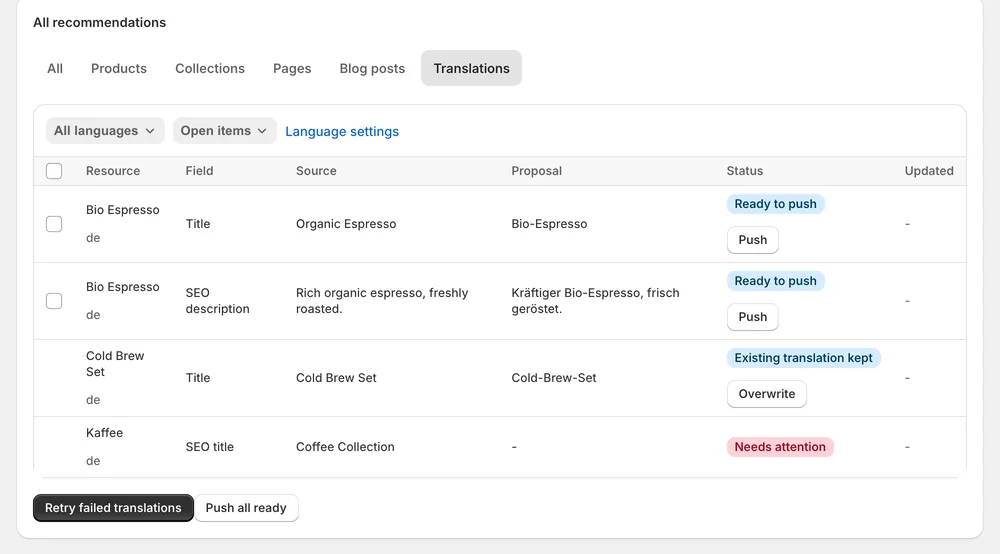
Sphen.ai prepares translations for the storefront languages you have already added in Shopify. It translates title, description, SEO title and SEO description on products and collections. Each translation is a proposal you compare with the source before you push it to Shopify. Every pushed translation can be reverted, and publishing the language is a separate step.
Updated:
The problem
A shopper who hits the store language halfway through the product page leaves.
AI assistants answering in German or French cite whoever wrote a complete page in that language.
Machine translation that overwrites existing work or mangles brand names costs more than it saves.
How it works
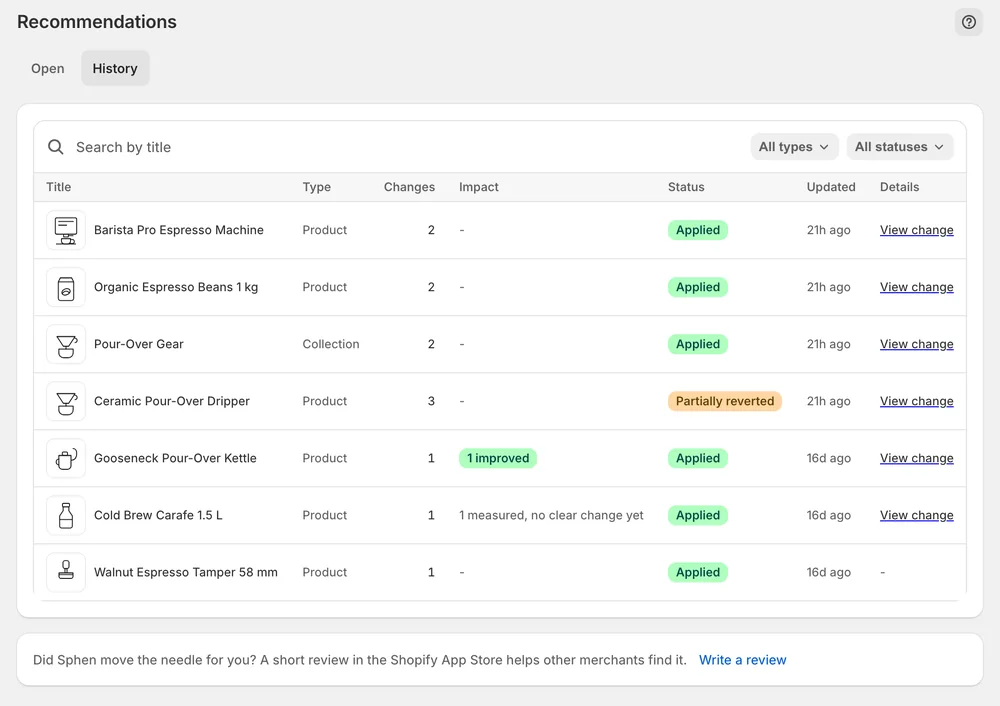
Under Settings → Brand, tick the storefront languages to prepare, choose Match source, Informal or Formal per language, and list protected terms such as brand and product names.
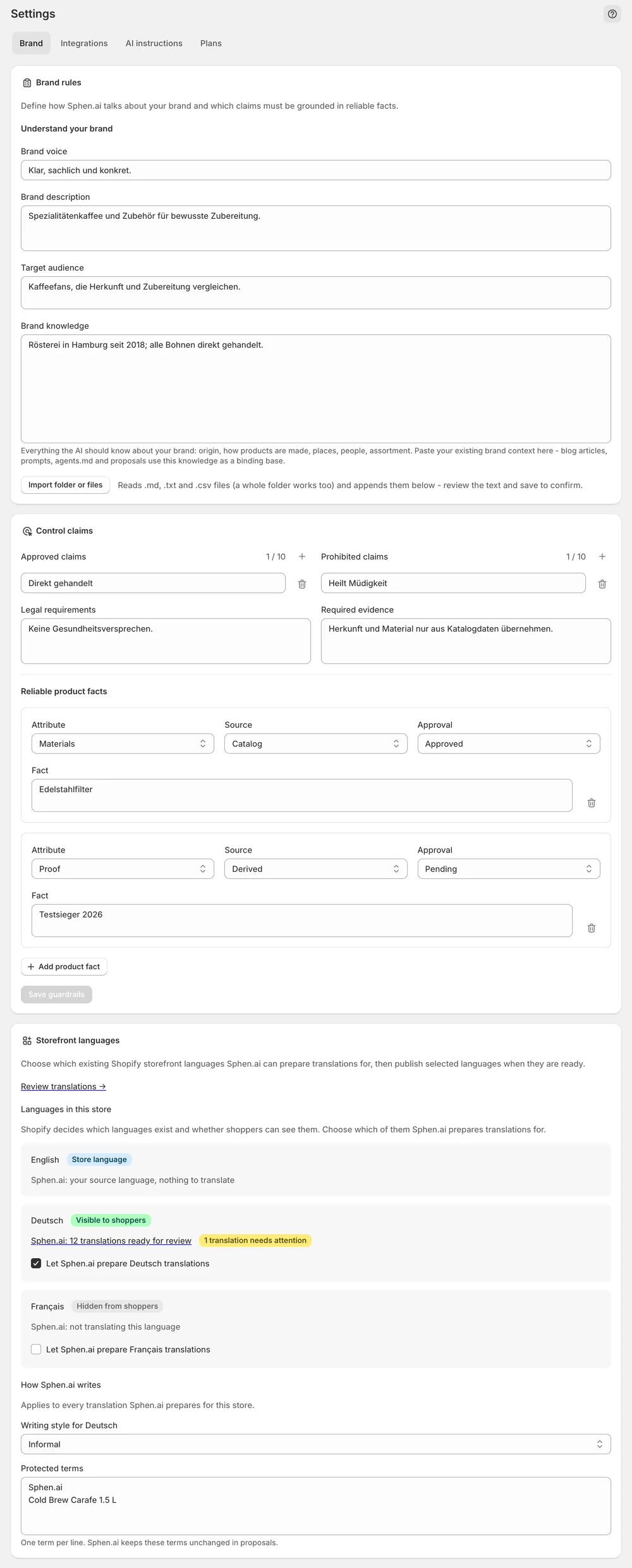
Generate translations writes nothing to Shopify. Compare Proposal with Source, then Push per row or Push all ready. Existing translations are kept unless you Overwrite.
Pushed translations are revertible. Once the core content is translated, publish the language to shoppers as a separate step.
In the app
Under Settings → Brand you find Storefront languages. Under Languages in this store, tick each language that Sphen.ai should prepare. Set the Writing style per language: Match source, Informal or Formal. List your Protected terms, such as brand and product names, one per line, then press Save language settings. If prompted, press Grant permission, because Sphen.ai needs write access before it can push translations.
The queue sits on Recommendations, in the Translations tab of the All recommendations table. Press Generate translations. Nothing is written to Shopify at this stage. Each row shows resource, field, source, proposal and status. Compare Proposal with Source, then use Push per row or Push all ready. Rows marked Existing translation kept stay as they are unless you choose Overwrite and confirm.
Statuses show where each proposal stands: Ready to push, Pushed, Existing translation kept, Changed elsewhere, Source changed and Needs attention. Per language, a summary line shows how far you are, from nothing prepared to published. When the core content is translated, go back to Storefront languages, press Publish to storefront and confirm. Anything without a translation falls back to your store language.
You stay in control
Plans
Included in every plan, with no separate quota.
Title, description, SEO title and SEO description on products and collections. Sphen.ai writes them in the writing style you set per language and leaves your protected terms, such as brand and product names, untranslated in every language.
No. It only prepares translations for languages you have already added in Shopify. Add the language in Shopify first. The Storefront languages card links there with Manage languages in Shopify. After that, tick the language in Sphen.ai and generate proposals.
The original text changed after the proposal was generated. Regenerate the proposal before pushing, so the translation matches the current text. Changed elsewhere is a different status: someone edited the translation in Shopify after it was generated.
It falls back to your store language, so shoppers see a storefront in mixed languages. Publish a language only once its core content is translated. Pushing translations to Shopify and publishing the language to shoppers are separate steps, so you can finish the work first.
No. Generating creates proposals, pushing writes them to Shopify, and publishing makes the language visible to shoppers. Those are three separate decisions. Shoppers see the language only after you press Publish to storefront under Storefront languages and confirm.
Not on its own. Translations that already exist are marked Existing translation kept. Replacing one requires an explicit Overwrite with a confirmation. If a translation was edited in Shopify after generation, the row shows Changed elsewhere, so you notice before you push.
Install Sphen.ai, let it read your store, and decide exactly what goes live.