
Supplier copy
Descriptions pasted from the manufacturer read like every other store selling the same product.
Recommendations · Product descriptions
Sphen.ai finds descriptions that leave out what buyers and AI assistants look for, drafts a replacement in your brand voice, and writes it to Shopify only when you apply it.
In short
Sphen.ai drafts a product description where the audit found a gap, for example a description that never names the material. The draft follows your brand profile and is shown next to the current text. You can edit it or refine it with an instruction. It is written to Shopify only when you press Apply.
Updated:
The problem
Descriptions pasted from the manufacturer read like every other store selling the same product.
Material, fit, use case and care instructions are what buyers ask assistants about, and what thin descriptions leave out.
Rewriting hundreds of descriptions without knowing which ones fall short wastes time on the wrong products.
How it works
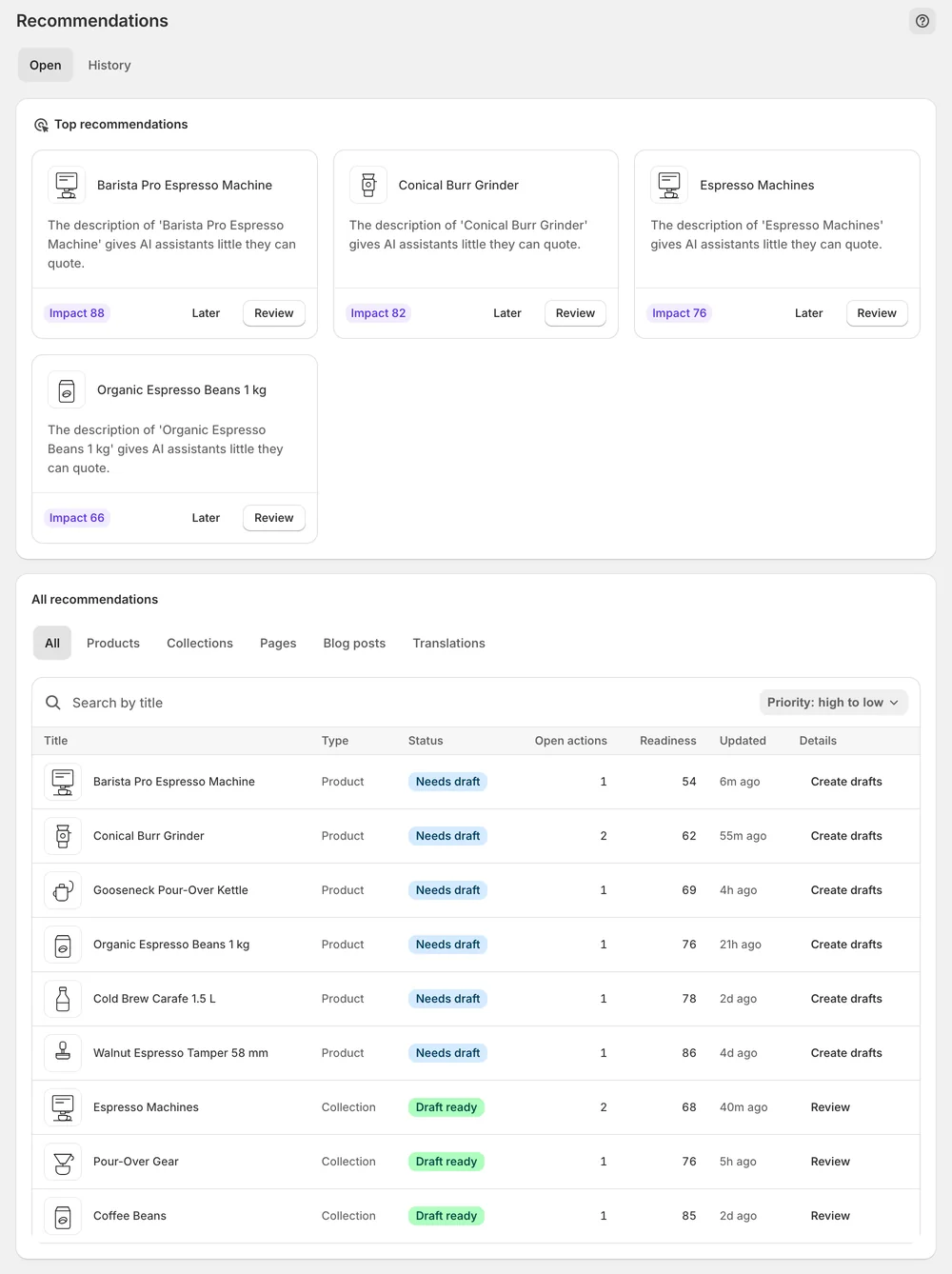
Improve product description recommendations appear in the Products tab of the approval table, each marked Needs draft or Draft ready.
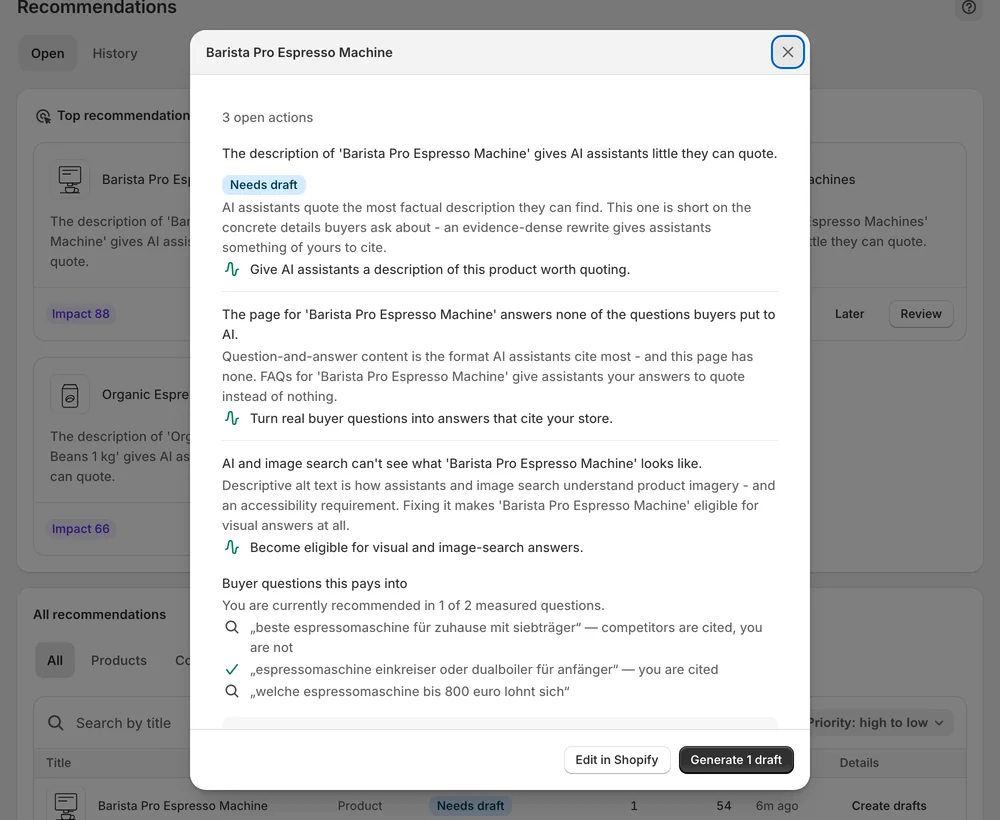
Open one to see what is missing, the buyer questions it pays into and Before / after. Generate the draft, then Edit it yourself or Refine with AI.
Apply writes only the description field. The change lands in History with a Live on store check.
In the app
Open a recommendation with Review on a card or Details on a table row. You see Before / after, with the current description next to the draft, and the Evidence block with Current, Target and Signal. That shows why the product was flagged before you read a single line of new copy. The Products tab of the All recommendations table collects these recommendations for the whole catalog.
Press Edit to change the wording yourself, or Refine with AI with an instruction such as “make it shorter”. If the draft does not fit your brand, press Dismiss. Editing or refining a change that was already approved reopens it for approval, so nothing you changed slips through unchecked. Apply then writes the description to Shopify.
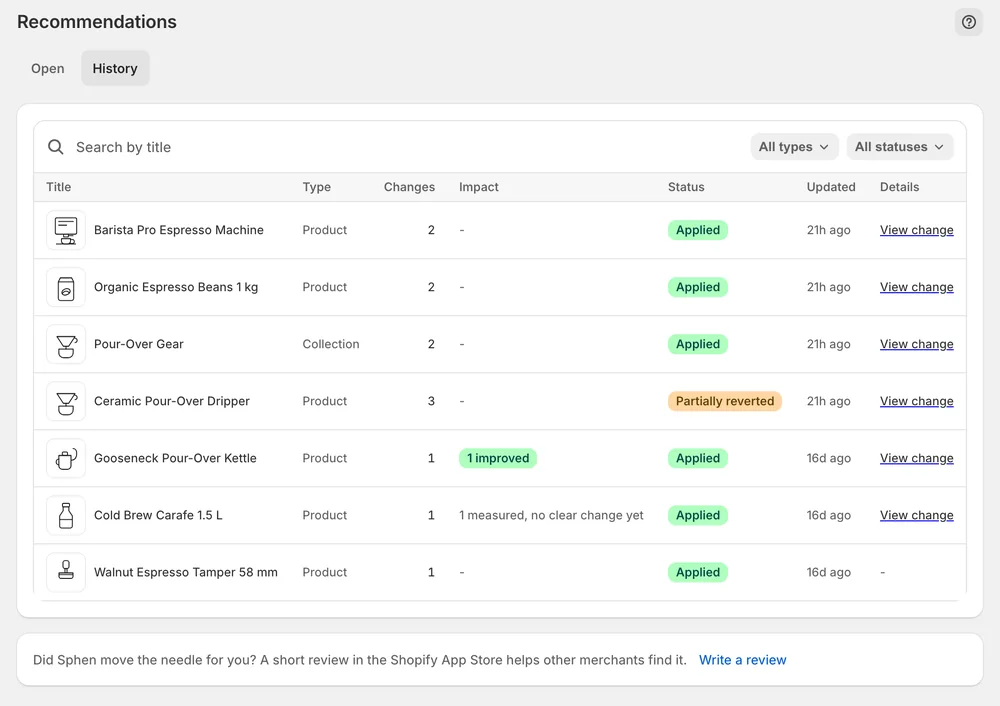
Applied descriptions move to the History tab. Each one carries a Live on store badge that verifies the value against your real storefront, and a Revert button that restores the previous text. The change then sits in Measuring for about two weeks while Sphen.ai collects data for a before/after comparison. That window is normal.
You stay in control
Plans
Included in every plan, with no separate quota.
No. It drafts where the audit found a gap, so you work on the products that need it. In the All recommendations table, the Proposal state filter on the Products tab separates actions that still need generation from drafts that are ready to apply.
Drafts follow the brand profile you confirmed during setup: business name, category, audience, markets and tone. You can sharpen voice and audience under Settings → Brand at any time. New drafts follow the update, and you still review each one before it goes live.
Yes. Use Refine with AI with an instruction like “make it shorter”, or Edit to change the wording yourself. If the change was already approved, editing or refining reopens it for approval. The draft is written to Shopify only when you press Apply.
Yes. Product descriptions are among the fields Sphen.ai prepares translation proposals for, alongside title, SEO title and SEO description. You review proposals in the Translations tab of the All recommendations table and push only the ones you approve. Existing translations are not overwritten on their own.
Yes. Open Recommendations → History and use Revert on the change. If someone edited the description in Shopify after Sphen.ai applied it, you get a warning first. You can check the current value in Shopify and then choose Revert anyway or cancel.
Some fields cannot be drafted from catalog data. Proposal pending means generation has not finished yet. A permanent message that no value could be generated means you update the field manually in Shopify. Product category is the common case: add a product type, or pick the category directly in Shopify.
Install Sphen.ai, let it read your store, and decide exactly what goes live.