
No record
Once an edit is saved in Shopify, the previous value is gone unless someone copied it.
Recommendations · History & revert
History keeps each change Sphen.ai wrote to Shopify. It checks the value against your live store, measures 14 days before and after, and reverts any change with one click.
In short
Open Recommendations, switch to the History tab and press Revert on the change. Sphen.ai restores the previous value. History lists every change it wrote to Shopify, verifies each one against your live storefront and measures it for about two weeks. If the field was edited in Shopify since, you are warned first.
Updated:
The problem
Once an edit is saved in Shopify, the previous value is gone unless someone copied it.
An app can report success while the storefront still shows the old text.
Without a before/after per change, nobody knows which edits were worth it.
How it works
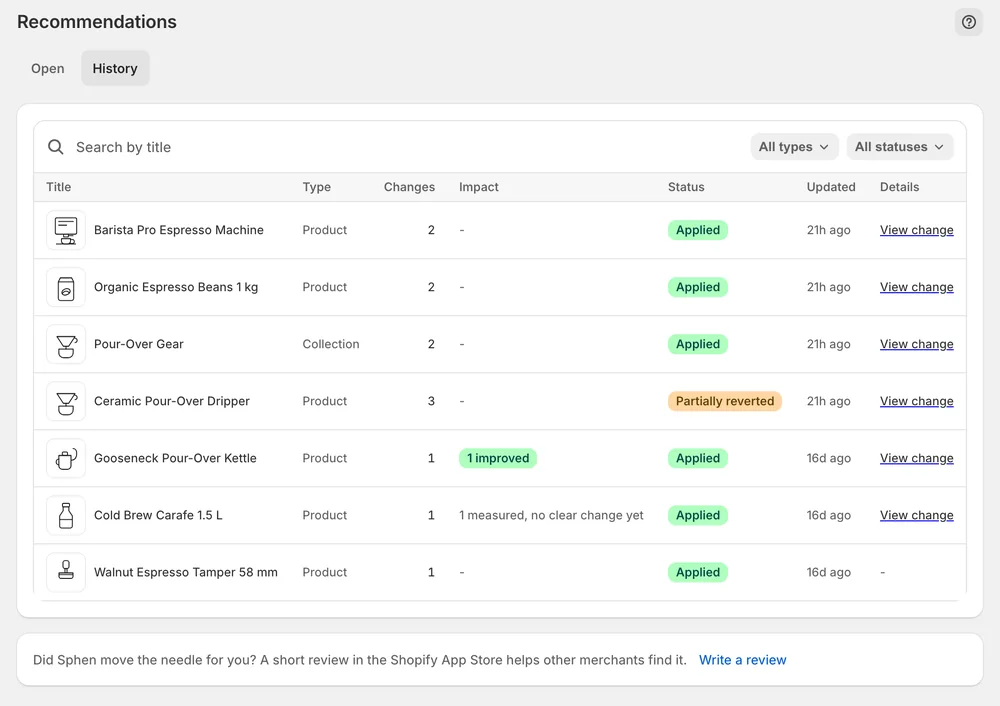
The History tab lists every applied change with its status. View change shows exactly what was written, and a Live on store badge confirms it against the storefront.
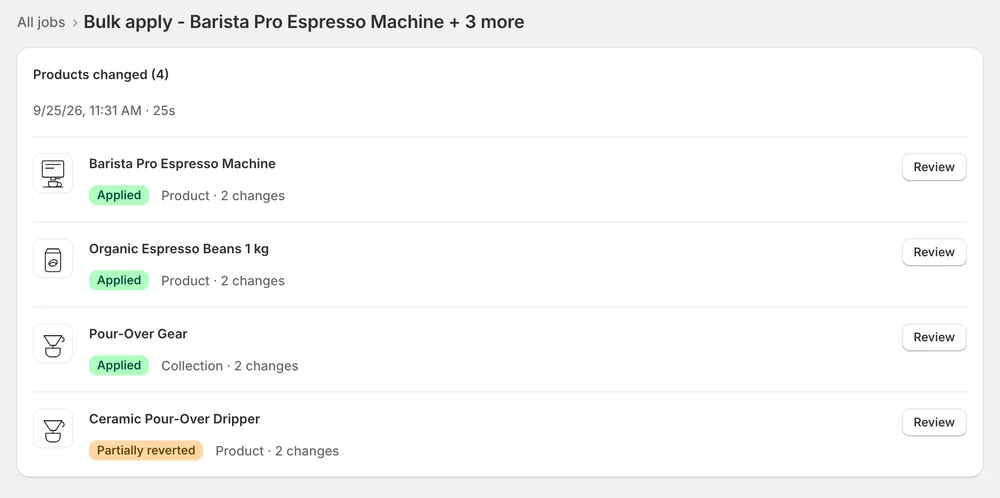
For a bulk run, the job shows every product it touched and its status. Each change is listed in History on its own, with its own Revert.
Each change sits in Measuring for about two weeks. Measured impact on Overview then counts it as Improved, Worsened, No measurable movement or Insufficient data.

In the app
The History tab in Recommendations lists everything already applied. Each change carries a status, a Revert button and a Live on store badge that verifies the value against the real storefront. Changes you have not applied yet do not appear here. If someone changed the field in Shopify after Sphen.ai applied it, the change shows Differs on store.
Revert restores the previous value. If the field was edited in Shopify after the change was applied, Sphen.ai warns you that reverting would overwrite the newer edit. Check the current value in Shopify first, then choose Revert anyway or cancel. Reverts run as background jobs, so they also appear under Activity with the type Revert, a status and job details.
After applying, a change moves to Measuring. It is live, and Sphen.ai waits for enough data to compare before and after. That window runs about two weeks. On Overview, the Measured impact card then sorts measured changes into Improved, Worsened, No measurable movement or Insufficient data. Expect a mix of results across your changes.
You stay in control
Plans
Included in every plan, with no separate quota.
Yes. Automatic applying is a private beta in the Growth plan and is not enabled for every store. Where it is enabled, auto-applied changes are listed in History like any other change and are fully revertible from there.
The change is live and Sphen.ai is collecting data to compare 14 days before and after. That window is normal. Once it ends, the change is counted under Measured impact on Overview as Improved, Worsened, No measurable movement or Insufficient data.
The change shows Differs on store, and reverting warns you before it would overwrite the newer edit. Check the current value in Shopify first. Then choose Revert anyway to restore the value from before the change, or cancel to keep the newer edit.
It means Sphen.ai verified the applied value against the real storefront value. Catalog fixes are live on your storefront within seconds of applying. If the badge shows Differs on store instead, the field was changed in Shopify after Sphen.ai applied it.
Yes. Each change from a bulk apply is listed in History on its own, with its own Revert. You can restore one product and leave the others as applied. The job details under Activity show which objects the run touched.
No. Changes already applied to your store stay applied, because they are ordinary Shopify catalog data. Subscriptions are handled by Shopify, and you can cancel from your Shopify admin. If you downgrade, quotas drop to the new plan from the next cycle.
Install Sphen.ai, let it read your store, and decide exactly what goes live.