
Black-box changes
Tools that edit a catalog silently lose trust the first time something looks wrong.
Autopilot & Activity
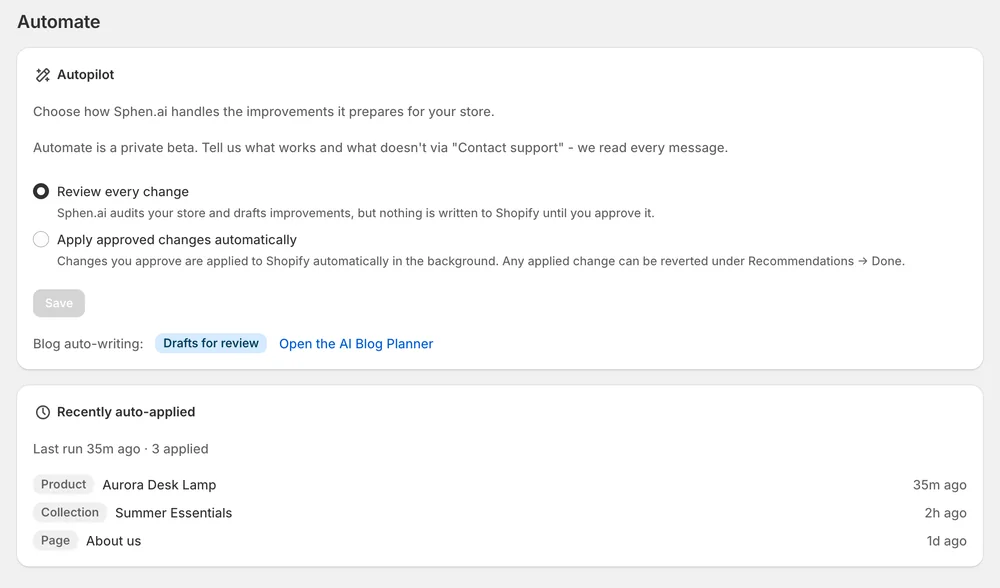
Choose whether Sphen.ai waits for every approval or applies what you approved in the background. Activity shows every job — drafts, audits, bulk applies — with live progress and per-item detail.
In short
Autopilot is the setting that decides whether Sphen.ai waits for your approval on every change or applies approved changes automatically. Automatic applying is a Growth-plan private beta and is off unless it is enabled for your store. Activity is the log of every background job, with live progress, status and error text.
Updated:
The problem
Tools that edit a catalog silently lose trust the first time something looks wrong.
When a background job fails, nobody knows what was done and what was not.
Either you click every change or you hand over everything — nothing in between.
Autopilot & Activity
How it works
Review every change, or Apply approved changes automatically. Blog auto-writing can stay on drafts for review.
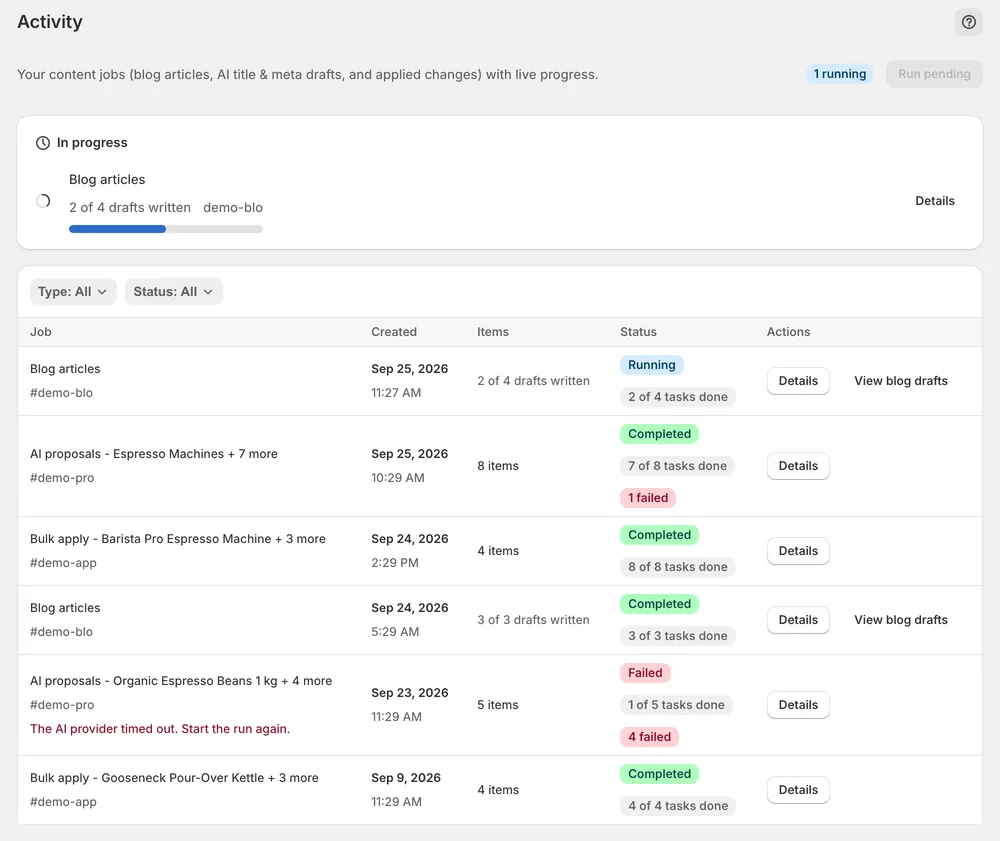
Activity lists blog runs, AI proposals and bulk applies with status, progress and failures, including the reason.
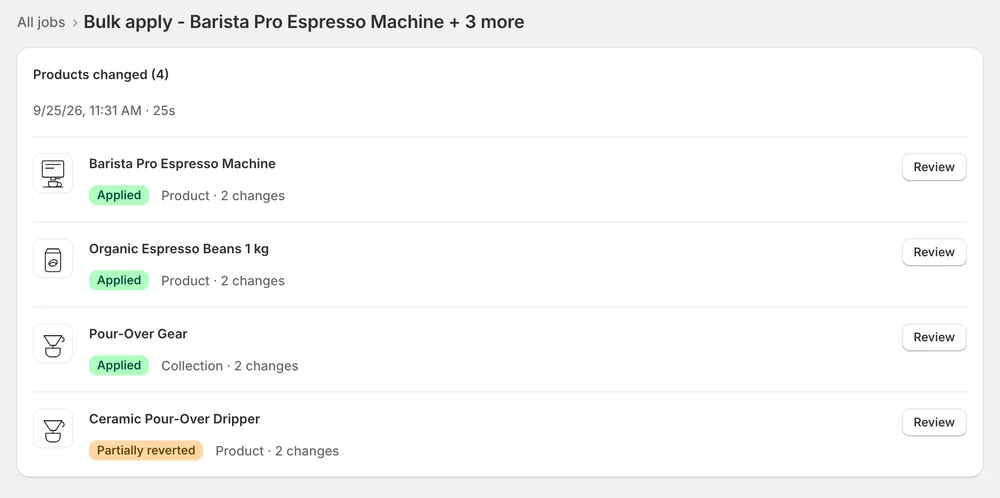
Open a job to see exactly which products and collections changed, and how.
In the app
The setting offers two options: Review every change and Apply approved changes automatically. Automatic applying is part of the Growth plan, currently a private beta and not enabled for every store. Ask support if you want it. Until then you apply every change yourself. Changes applied automatically stay revertible from Recommendations → History, like any other change.
Open Activity from the main navigation. Jobs are listed newest first, with a live badge on anything that is running. Filter by Type, for example Sync, Audit, Apply, Revert, AI proposals, Bulk apply, Blog articles or Translations. Filter by Status: Running, Completed, Failed or Pending. If jobs sit in Pending, press Run pending to push the queue along.
Press Details on a job to see the objects it touched, when it started and completed, its duration and the full error text. A running job can show a Stalled marker when it has made no progress for a while. It reconciles automatically, so give it time. Note job type, status and error text before you contact support.
You stay in control
Plans
Included in every plan, with no separate quota.
No. Automatic applying is part of the Growth plan. It is currently a private beta and is enabled per store on request, so ask support if you want it. On every plan you can review and apply changes yourself in Recommendations.
Yes. Activity lists every background job, newest first. Press Details on a job to see the objects it touched, when it started and completed, and how long it took. Filters for Type and Status narrow the list to what you are looking for.
The job shows Failed, and Details carries the full error text. For a failed scan, start a new one from Overview. For a failed bulk apply, reload Recommendations and apply what is still open. Note the job type and error before contacting support.
Changes are applied per field, so a failed bulk run can leave some applied and some not. Your open-actions list under Recommendations always carries the true status. Apply again from there. Changes that already landed stay revertible in History.
Syncs and audits scale with catalog size and can run for many minutes on large stores. Blog drafts take a few minutes each. Bulk applies take a few seconds per item. All of them keep running when you leave the page.
Yes. Auto-applied changes are fully revertible from Recommendations → History. Use Revert on the change. If the field was edited in Shopify afterwards, you get a warning before the newer edit is overwritten. Check the current value in Shopify first.
Install Sphen.ai, let it read your store, and decide exactly what goes live.