
Questions, not keywords
Buyers ask assistants full questions with a use case, a budget and a comparison in them. A keyword list misses most of that.
AI visibility · Prompt tracking
Sphen.ai builds a panel of buyer prompts from your catalog, lets you add your own with intent and language, and asks them on every scan.
In short
Prompt tracking is a fixed panel of buyer questions that Sphen.ai asks AI assistants on every scan. The first prompts are generated from your synced catalog. You add your own with an intent and a language, delete the ones that do not fit, and read visibility, win rate and movement for each prompt.
Updated:
The problem
Buyers ask assistants full questions with a use case, a budget and a comparison in them. A keyword list misses most of that.
Generic prompt sets track questions nobody in your market asks, and skip the ones that decide a purchase.
A store selling in two languages gets two different sets of answers. Tracking only one hides half the picture.
How it works
On the first scan, Sphen.ai generates buyer prompts from your synced catalog. Start it from the AI visibility scan card on Overview; it runs in the background.
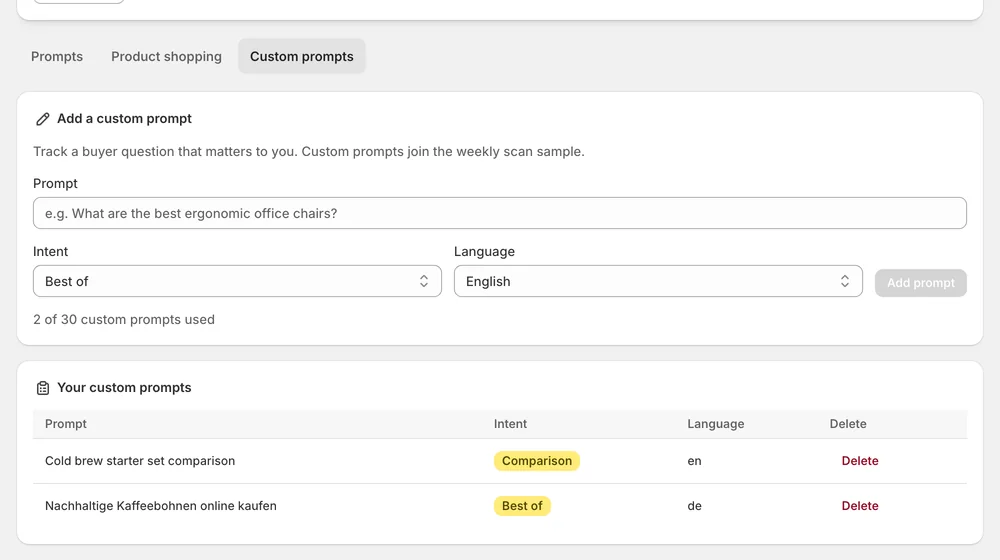
In the Prompts deep dive, open Custom prompts, enter a prompt, pick an Intent and a Language, and press Add prompt. It joins the next scan.
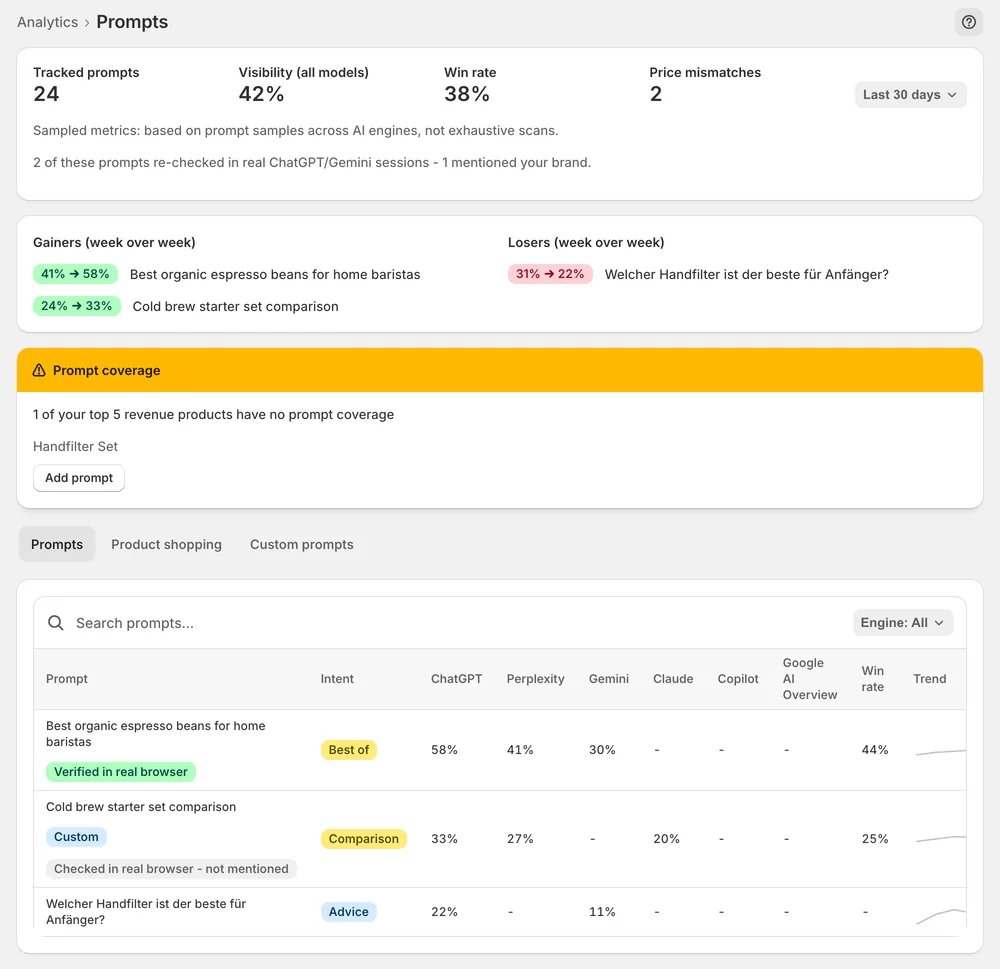
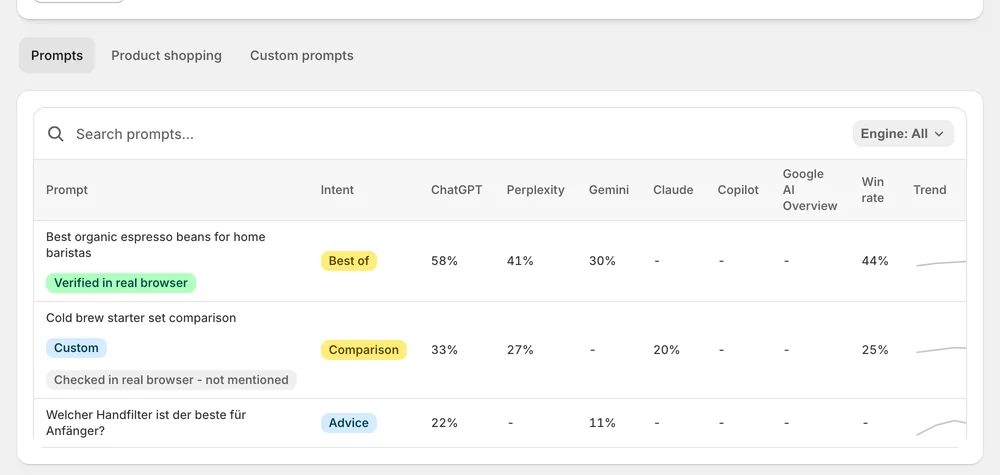
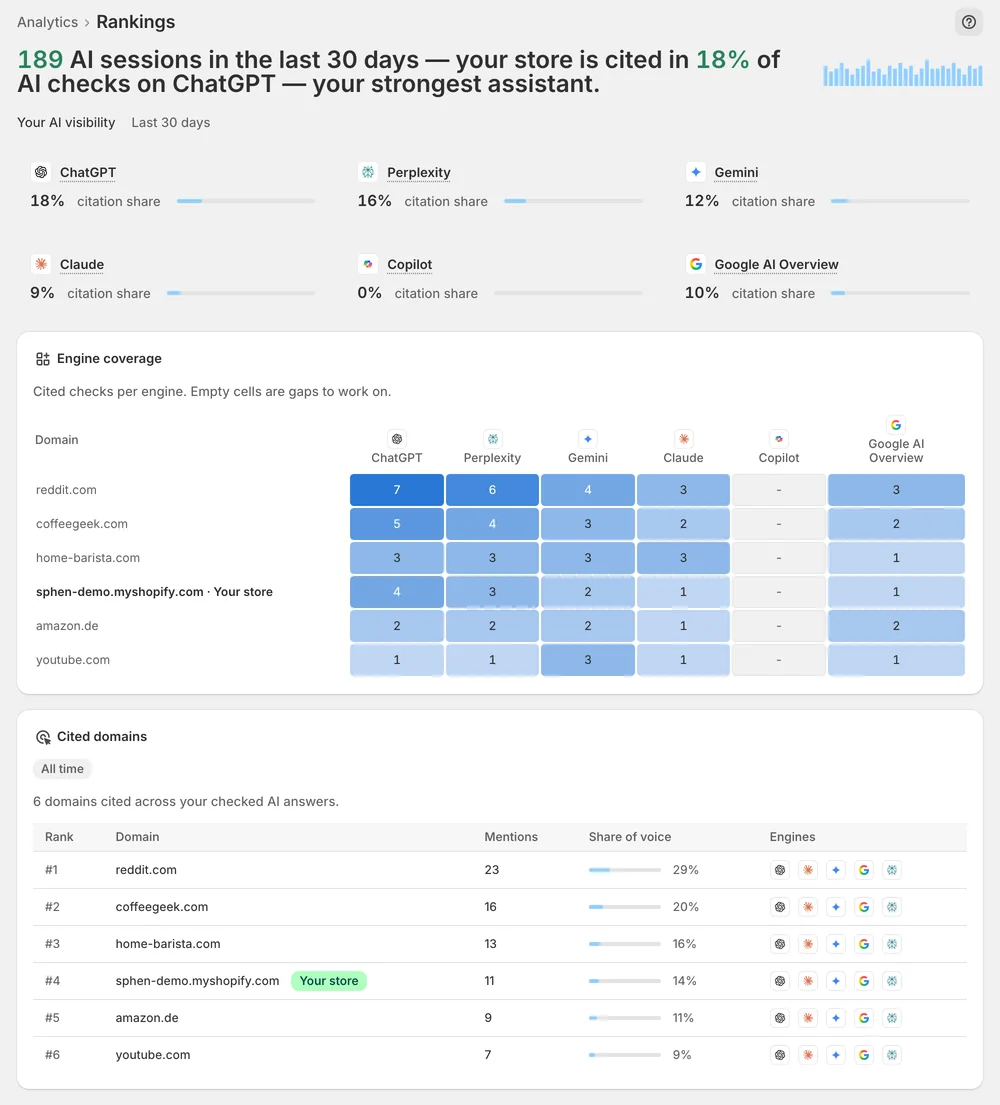
Every prompt carries its visibility, win rate and movement. Rankings shows, per prompt and engine, where you appear and where you are missing.
In the app
On Analytics, open the AI visibility deep dives dropdown and pick Prompts. The Custom prompts tab shows the panel Sphen.ai generated from your catalog, together with the prompts you added yourself. Each row is one buyer question. You can remove a prompt with Delete if it does not reflect your market. Results collected in earlier scans stay in those past runs.
Under Add a custom prompt you enter the question the way a buyer would ask it. You pick an Intent and a Language, then press Add prompt. The prompt joins the next scan, so results appear once that scan has finished. How many prompts you can track depends on your plan. The plans are compared under Settings → Plans.
Every prompt shows its visibility, its win rate and how it moved. Gainers and Losers list the prompts with week-over-week movement. Open a prompt to see the competitors mentioned in the same answers. Some rows carry a real-browser evidence badge. The Rankings deep dive adds engine coverage per prompt, so an empty cell shows you an assistant that answers the question without your store.
You stay in control
Plans
tracked prompts included
Sphen.ai generates them from your synced catalog. You see the full panel under Custom prompts in the Prompts deep dive. If a generated prompt does not match how your buyers ask, delete it and add your own wording instead.
Yes. Each custom prompt has its own Language, so you can track the questions of each market separately. A store that sells in two languages can keep prompts in both and compare, prompt by prompt, how assistants answer in each one.
It labels what the buyer is trying to do with the question, so you can read prompts of the same kind together. You set it together with the Language when you add a prompt under Add a custom prompt in the Prompts deep dive.
A custom prompt joins the next scan. Results appear once that scan finishes. Scans run in the background, so you can leave the page. You start one with Start scan now on the AI visibility scan card on Overview.
The number of tracked prompts depends on your plan. Essential, Business and Growth each include a different amount, which you can compare under Settings → Plans. To keep the panel focused, delete prompts that no longer fit your market.
Results already collected stay in the past runs, so earlier scans remain readable. The prompt itself leaves your panel. You delete a prompt with Delete in the Custom prompts tab of the Prompts deep dive on Analytics.
Install Sphen.ai, let it read your store, and decide exactly what goes live.