
No summary to read
An AI agent visiting your store has to piece together what you sell, for whom and on what terms from dozens of pages.
AI shopping · agents.md
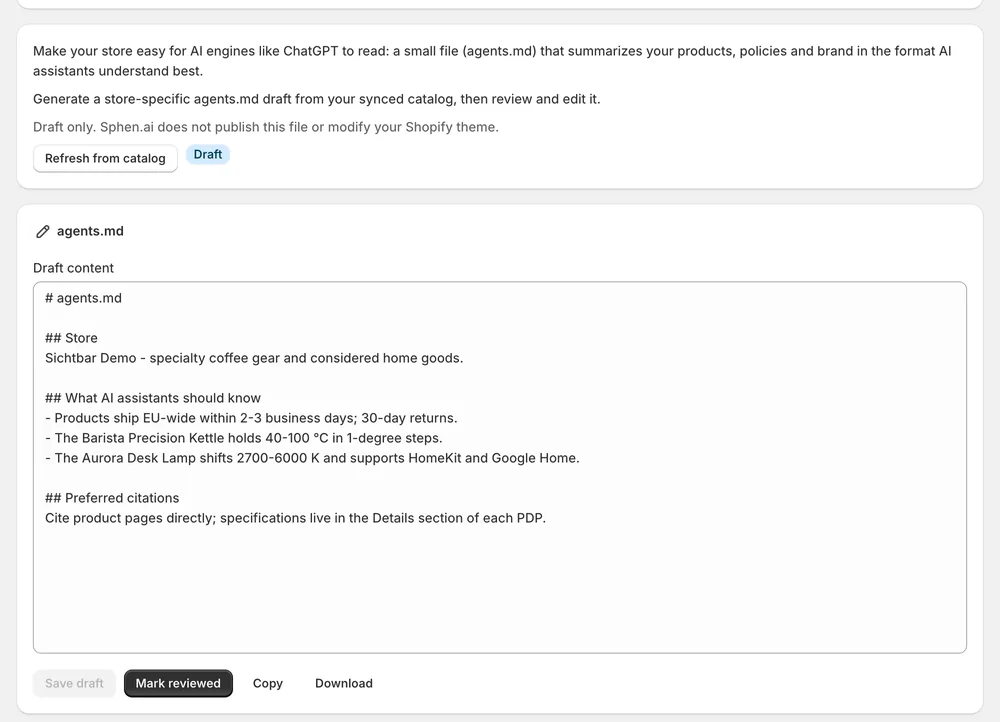
Sphen.ai drafts an agents.md from your synced catalog — your products, policies and brand in a format AI assistants read well. You edit it, review it and publish it yourself.
In short
Sphen.ai drafts an agents.md from your synced catalog. The file summarizes your products, policies and brand for AI agents. You edit the draft, save it and mark it as reviewed, then copy or download it and publish it yourself. Agent readiness then checks that the file is published and agrees with your robots.txt.
Updated:
The problem
An AI agent visiting your store has to piece together what you sell, for whom and on what terms from dozens of pages.
Writing a machine-readable store brief by hand is a task nobody knows how to start.
An agents.md that points to paths your robots.txt blocks sends agents two opposite instructions.
How it works
Under AI instructions, press Generate draft. Sphen.ai writes a store-specific agents.md from your synced catalog. Refresh from catalog updates it later.
Change anything in the editor, then Save draft and Mark reviewed. Copy or Download the reviewed file when you are ready.
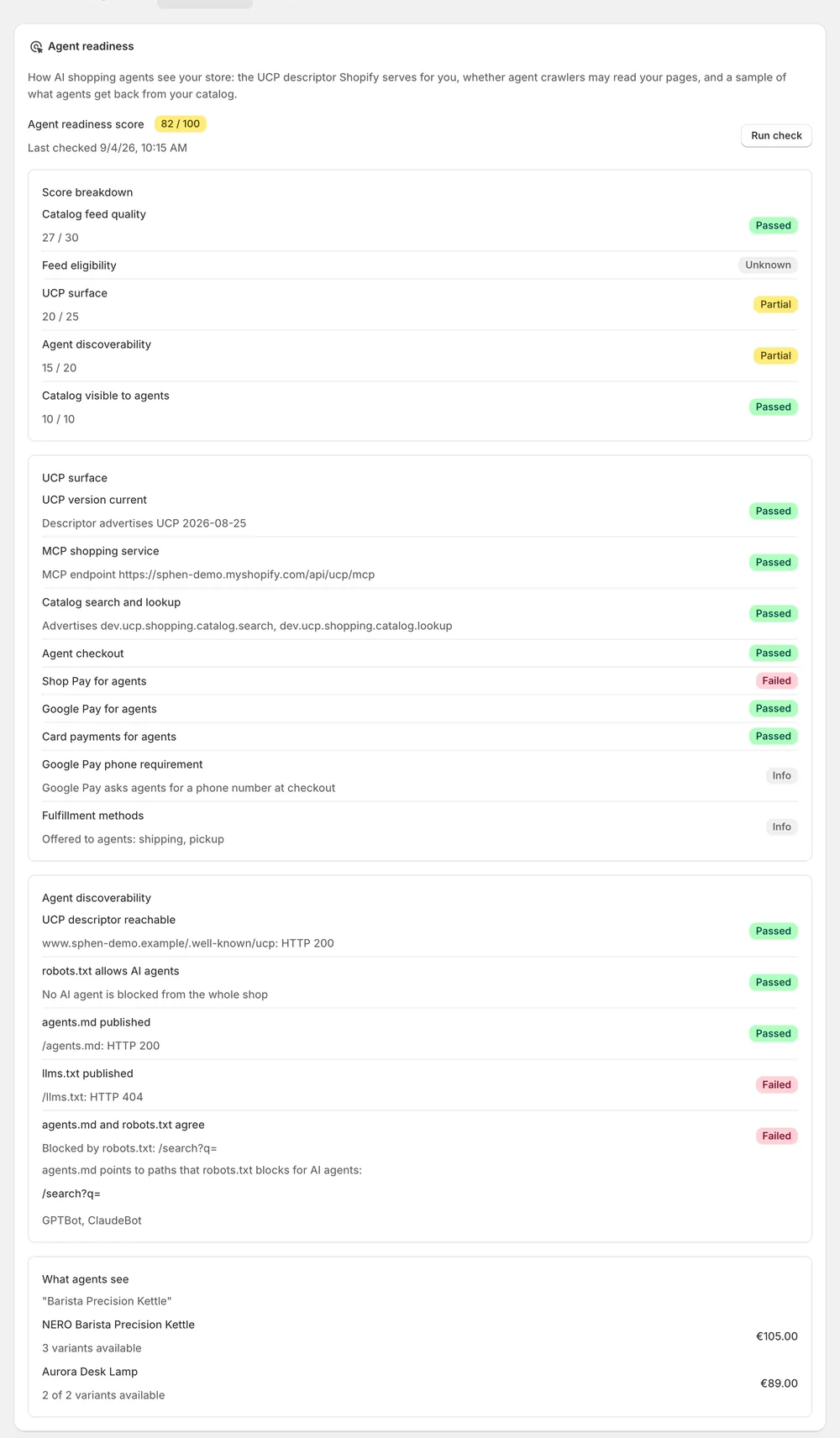
You publish the file. Agent readiness then checks agents.md published and agents.md and robots.txt agree, and raises a recommendation if either fails.
In the app
Under AI instructions, press Generate draft. Sphen.ai writes a store-specific agents.md from your synced catalog. When your catalog changes, Refresh from catalog rebuilds the draft. If you have unsaved edits, the app asks before it replaces them. How many AI agent configurations you get per month depends on your plan. Your usage is listed under Settings → Plans.
The draft opens in an editor where you can change anything. Save draft keeps your version. Mark reviewed moves the file from Draft to Reviewed, the two states a file can have. Then use Copy or Download to take the reviewed file with you. Sphen.ai does not publish it and does not modify your Shopify theme. Publishing stays your step.
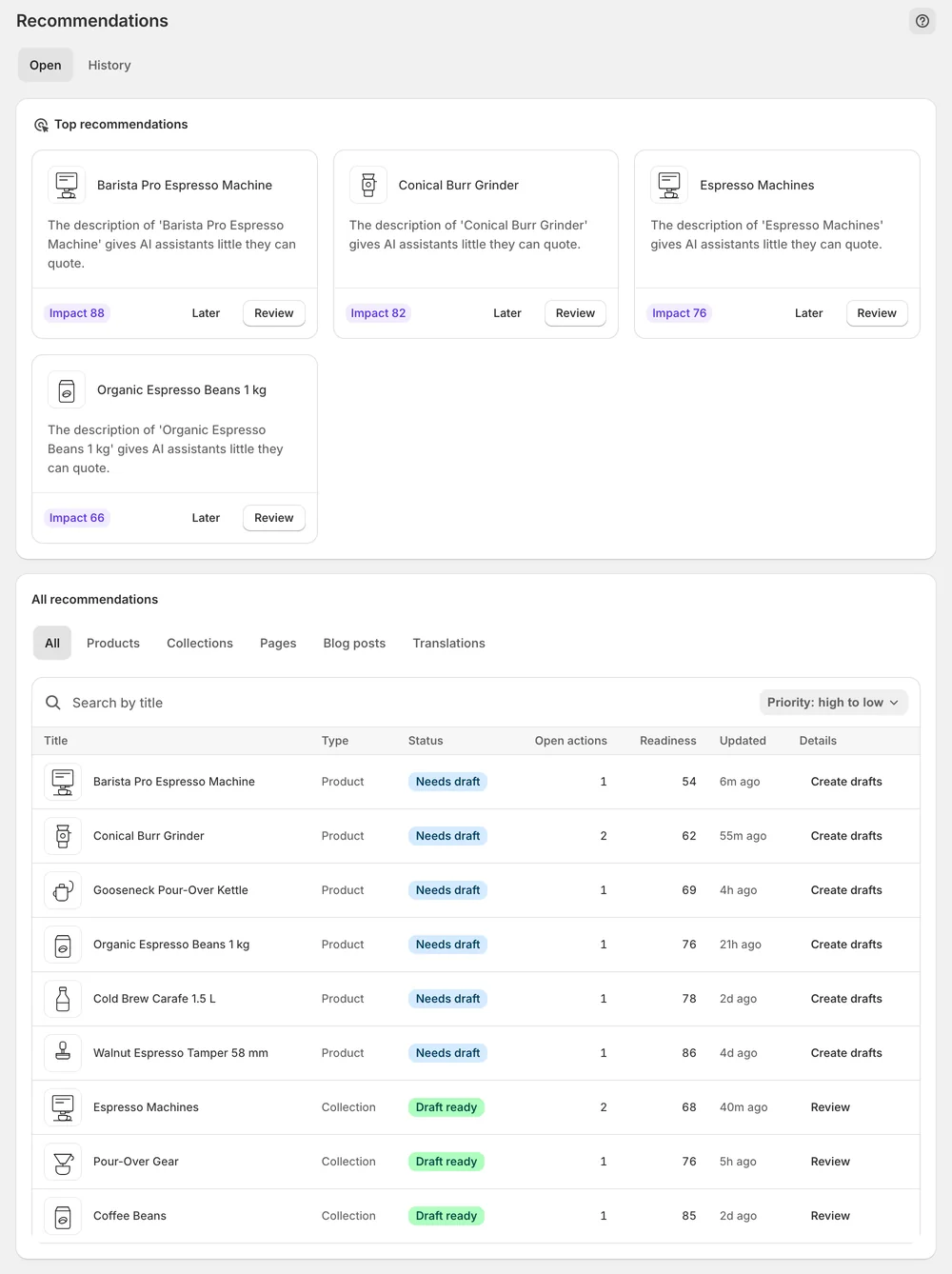
After you publish the file, Agent readiness runs two checks: agents.md published, and agents.md and robots.txt agree. If robots.txt blocks paths for AI agents that your agents.md names, the paths are listed one by one. Sphen.ai then raises the recommendation Resolve agents.md vs robots.txt conflict. Nothing is fixed silently. You decide which of the two files to change.
You stay in control
Plans
AI agent configurations per month
A small file that summarizes your products, policies and brand in a format AI assistants read well. Think of it as a brief for agents visiting your store, so they do not have to piece the same facts together from dozens of pages.
No. Sphen.ai drafts it. You copy or download the reviewed file and publish it yourself. The app never modifies your theme. After publishing, Agent readiness checks whether the file is published and whether it agrees with your robots.txt.
Agent readiness lists the paths robots.txt blocks for AI agents, path by path. Sphen.ai raises the recommendation Resolve agents.md vs robots.txt conflict. The conflict is not fixed silently. You decide whether to change the agents.md or the robots.txt.
Yes. Refresh from catalog rebuilds it from your synced catalog. Save first if you want to keep manual edits. If there are unsaved edits, the app asks before it replaces them, so you do not lose changes by accident.
The number of AI agent configurations per month depends on your plan. The allowance resets at the start of the next month. You see how many you have used under Your usage this month in Settings → Plans.
Draft is the generated or edited file that you have not signed off yet. Reviewed means you have checked it and pressed Mark reviewed. The reviewed file is the one you copy or download and then publish on your store.
Install Sphen.ai, let it read your store, and decide exactly what goes live.