
Every store sounds the same
Without a voice to follow, AI drafts fall back to the same neutral phrasing your competitors publish.
Catalog audit · Brand profile
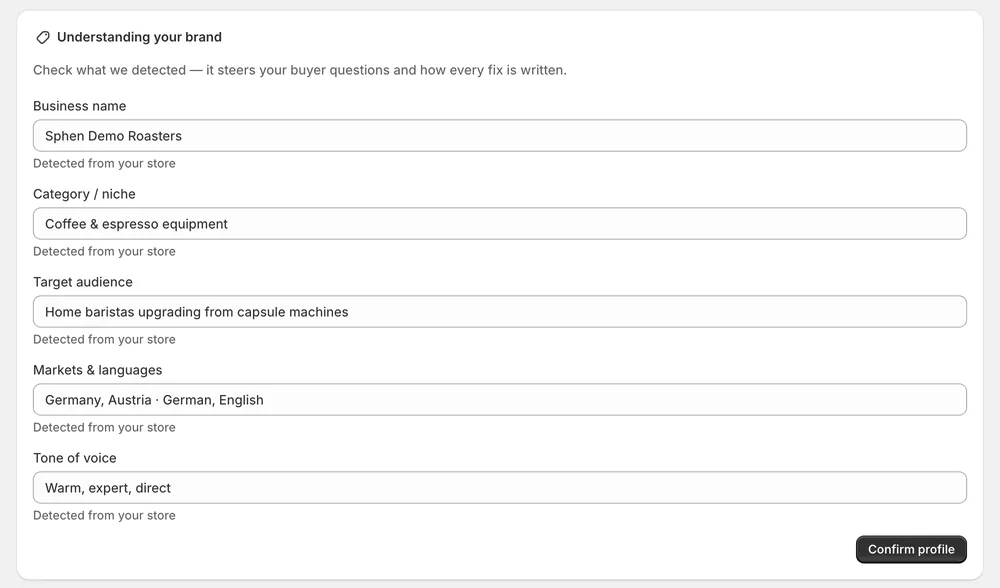
Sphen.ai detects your business name, category, audience, markets and tone from your store. You confirm or correct it once, and that profile steers every draft it writes.
In short
The brand profile is the set of facts Sphen.ai writes with: business name, category, audience, markets and tone. Sphen.ai pre-fills it from your Shopify store during setup. You correct anything that is off and press Confirm profile. From then on, the profile steers how every draft is written.
Updated:
The problem
Without a voice to follow, AI drafts fall back to the same neutral phrasing your competitors publish.
Copy written for everyone speaks to nobody, and answers the wrong buyer questions.
If each draft needs a rewrite to fit your tone, the time saved is gone.
How it works
During setup, Understanding your brand pre-fills business name, category, audience, markets and tone. Correct anything and press Confirm profile.
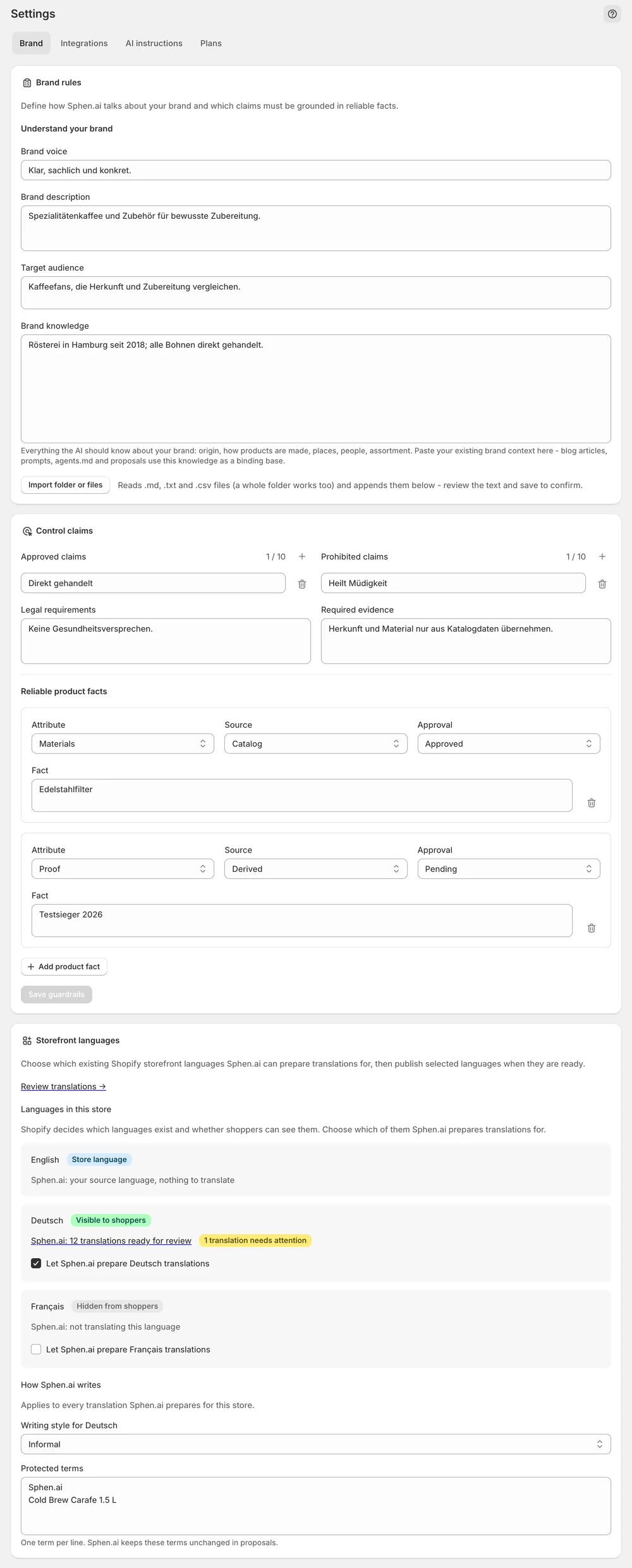
Under Settings → Brand, sharpen your brand voice and target audience, and add brand knowledge the AI should treat as its base.
Product descriptions, meta descriptions and collection copy are drafted in that voice. You still review each one before it goes live.
In the app
While the first sync runs, the Understanding your brand card on Get started shows what Sphen.ai detected: business name, category, audience, markets and tone. Each value can be corrected before you press Confirm profile. It is the one thing you confirm during setup. Your profile is saved, so you can leave the page and continue later, on any device.
Under Settings → Brand you sharpen your brand voice and target audience and add brand knowledge that the AI should treat as its base. You can change the profile at any time, and new drafts follow the update. Changing the profile does not write anything to Shopify. It changes how drafts read, and every draft still waits for your approval.
The same settings page holds Storefront languages. For each language that already exists in your Shopify store, you choose a Writing style: Match source, Informal or Formal. Under Protected terms you list brand and product names, one per line, so translations leave them untouched. Press Save language settings to keep the changes. Translation proposals then follow these settings.
You stay in control
Plans
Included in every plan, with no separate quota.
Sphen.ai reads it from your store during setup: business name, category, audience, markets and tone. The values appear pre-filled on the Understanding your brand card. Nothing detected is used as final until you have checked it and pressed Confirm profile.
How every draft is written, and the buyer questions Sphen.ai measures your store against. Product descriptions, meta descriptions and collection copy are drafted in that voice. It does not change what gets applied, because every draft still waits for your approval.
Yes. Under Settings → Brand, list them as protected terms for your storefront languages, one per line. Translation proposals then leave those brand and product names untouched. You can also set the writing style per language there: match the source, informal or formal.
Yes, at any time under Settings → Brand. New drafts follow the updated profile. If a single draft still misses your tone, open it and use Edit to change the wording yourself, or Refine with AI with a short instruction such as “make it shorter”.
Yes. The profile changes how drafts read, not whether they go live. Each draft is shown with a before/after comparison and is written to Shopify only when you press Apply. If a draft does not fit your brand, use Dismiss.
You can return to it. The Setup guide on Overview keeps a Guided setup link while your first run is not finished. Nothing you entered is lost. Until you confirm the profile, the detected values are not treated as final.
Install Sphen.ai, let it read your store, and decide exactly what goes live.