
Silent background work
Syncs, audits and drafts run while you do other things. Without a log you only notice what never arrived.
Autopilot & Activity · Activity log
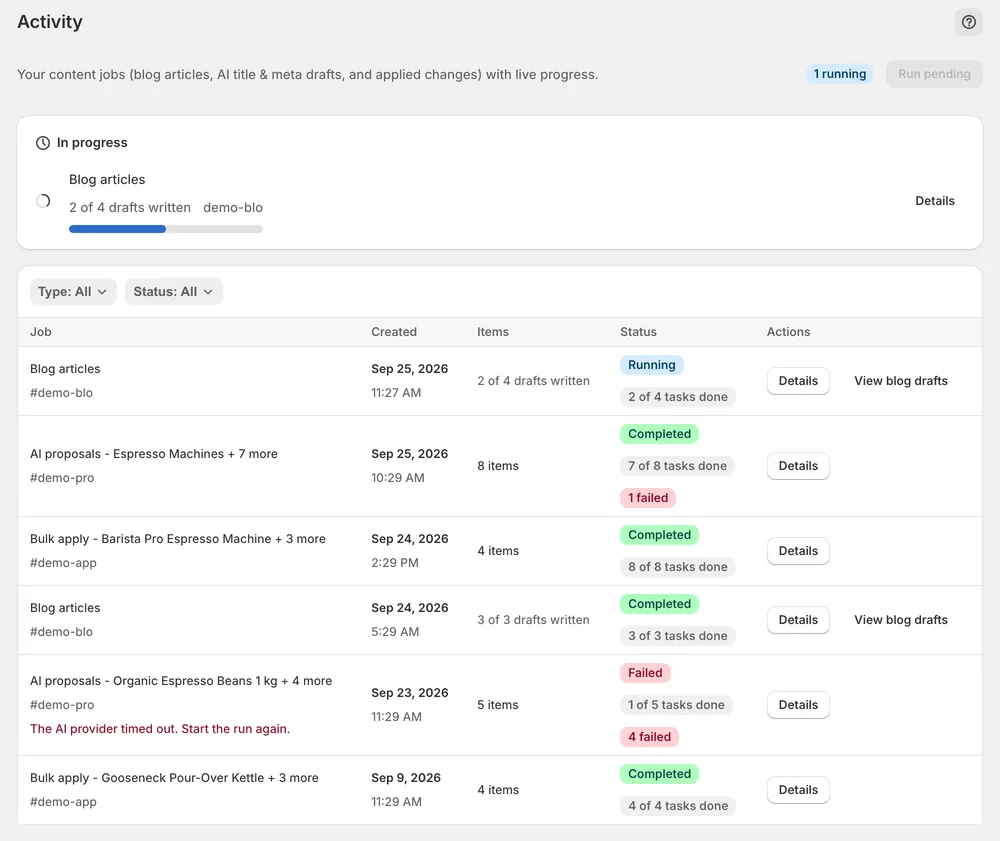
Activity lists every sync, audit, draft run and bulk apply Sphen.ai starts — with live progress, per-item detail and the exact error when something fails.
In short
The Activity log is the list of every background job Sphen.ai runs on your store: syncs, audits, AI proposals, bulk applies, blog articles and translations. Each job shows live progress and a status of Running, Pending, Completed or Failed. When a job fails, Details shows the full error text, so you know whether to wait, retry or fix a connection.
Updated:
The problem
Syncs, audits and drafts run while you do other things. Without a log you only notice what never arrived.
A bulk apply that stops midway leaves some products changed and some not. You need to know which.
Re-running an expensive scan because a permission lapsed wastes allowance and time.
How it works
Open Activity from the main navigation. Filter by Type — Sync, Audit, Apply, Revert, AI proposals, Bulk apply, Blog articles, Translations — and by Status.
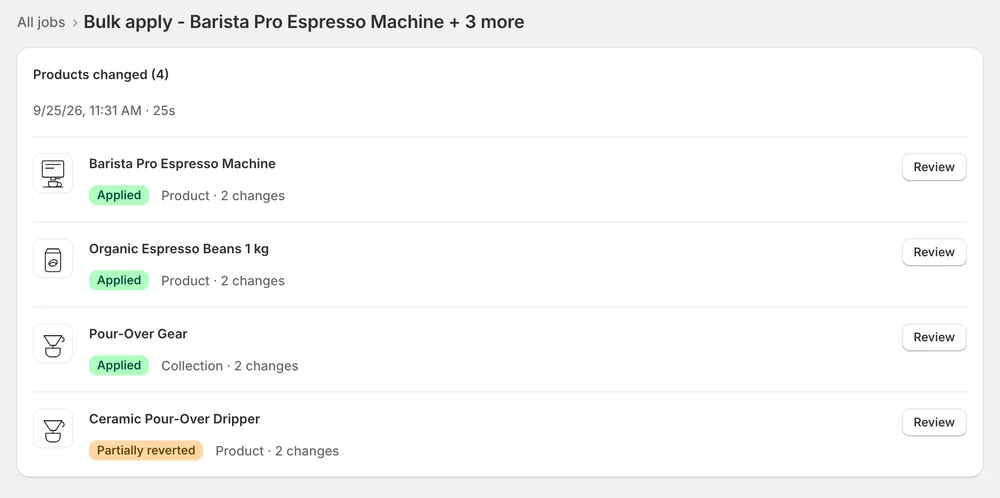
Details shows the objects a job touched, start and end time, duration and the full error text.
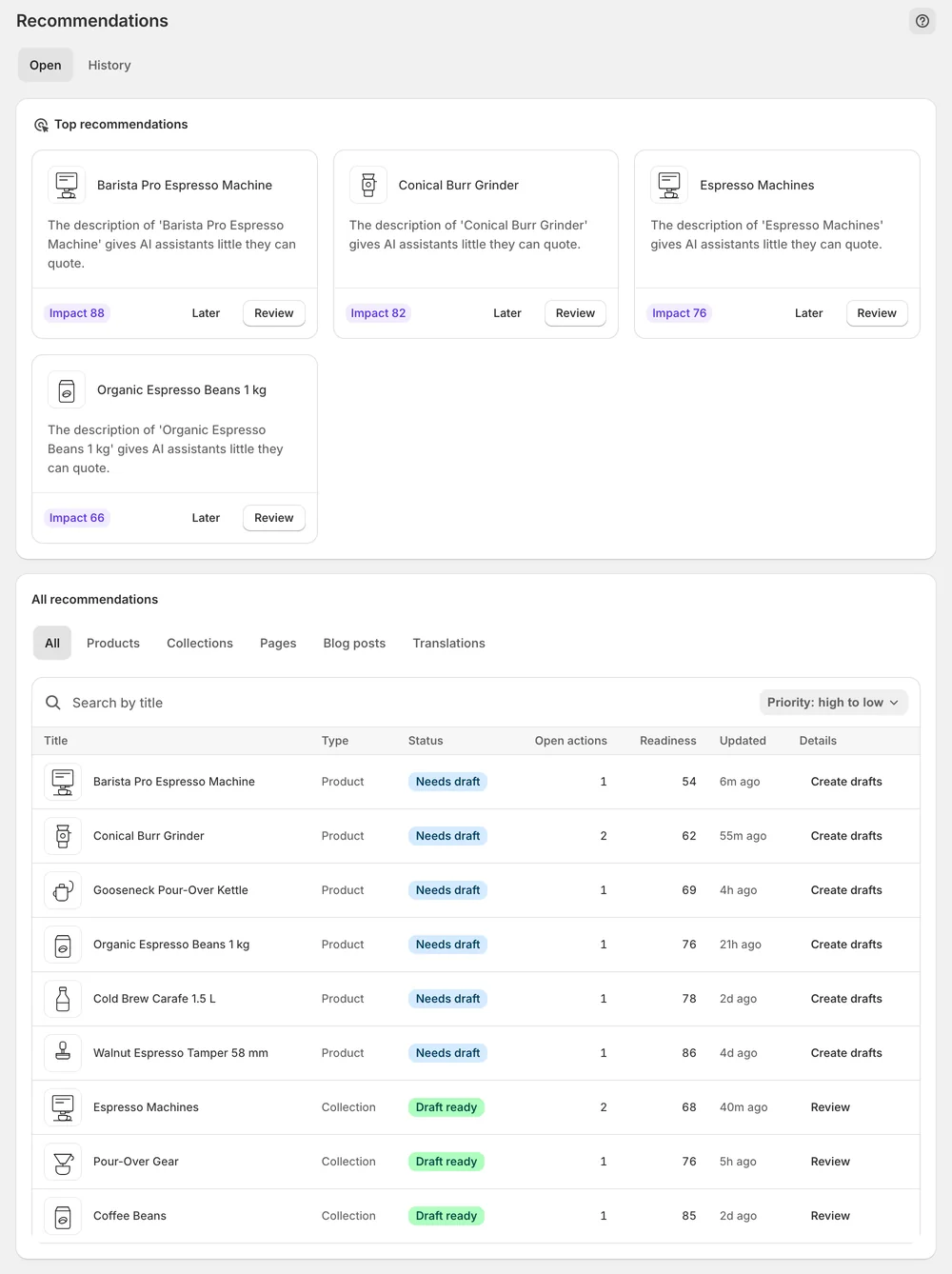
Press Run pending for queued jobs, retry the failed step, or re-apply open changes from Recommendations — the true status lives there.
In the app
Open Activity from the main navigation. Jobs are listed newest first, and anything currently running carries a live badge. Two filters narrow the list. Type covers Sync, Audit, Apply, Revert, Webhook, AI proposals, Bulk apply, Blog articles, AI shopping insights and Translations. Status covers Running, Completed, Failed and Pending. That is how you find the one draft run or bulk apply you started earlier.
Press Details on a job to see the objects it touched, when it started and completed, its duration and the full error text. For a bulk apply, this is where you see which products were changed. In the table, a failure is labelled by job type, so you read Audit failed, Apply failed or Sync failed. Note the job type, status and error text before you contact support.
A Stalled marker on a running job means there has been no progress for a while. It reconciles automatically, so give it time before you act. If jobs sit in Pending, press Run pending to push the queue along. If the same job type stalls repeatedly, send the job details to support. Your open actions under Recommendations always carry the true status of each change.
You stay in control
Plans
Included in every plan, with no separate quota.
In Activity. Filter by AI proposals or Blog articles and check whether the job is Running, Pending or Failed. Running means work is still in progress. Pending means it is queued, and Run pending pushes the queue along. Failed means it stopped, and Details shows the error text.
Changes are applied per field, so a failed bulk run can leave some fields applied and some not. Your open actions under Recommendations always carry the true status. Reload the tab and re-apply what is still open. Persistent failures appear as failed jobs in Activity.
No. Syncs, audits, drafts and bulk applies keep running in the background after you leave the page. When you come back, Activity shows each job with its current status, and running jobs update live, so you can pick up where you left off.
Syncs and audits scale with catalog size and can run for many minutes on large stores. Blog drafts take a few minutes each, and bulk applies take a few seconds per item. If a running job shows no progress for a while, it gets a Stalled marker.
No. The log is scoped to your store, and a job that belongs to another store cannot be opened. The log is also read-only: it shows what Sphen.ai did and why a job failed, but it does not change anything in your store.
Start a new scan from the Overview page. If it fails again, check your remaining scan allowance under Settings → Plans first. A used-up allowance refuses the action with Monthly limit reached. The allowance depends on your plan and resets at the start of next month.
Install Sphen.ai, let it read your store, and decide exactly what goes live.