
What it does
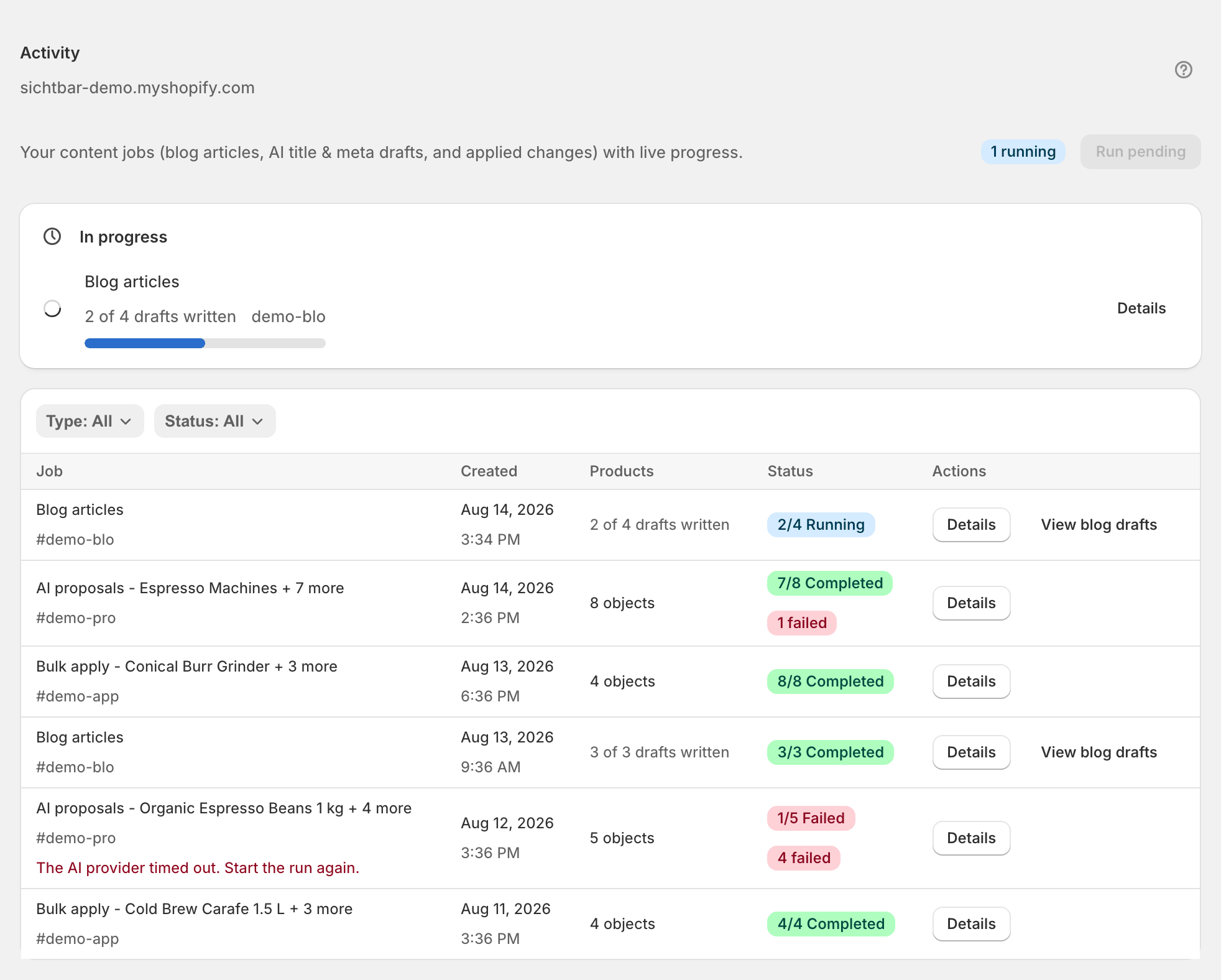
Check Activity whenever something you started hasn't shown up: a sync that never finished, drafts that never appeared, a scan with no results, or an apply that seems not to have reached your store. Every background job Sphen.ai runs is listed there with live progress, a status and — when it failed — the error. It is the first place to look before assuming something is broken.
Why it matters
Most apparent failures are jobs still running or a permission that lapsed, not lost data. Reading the job list takes thirty seconds and tells you whether to wait, retry, or fix a connection — instead of re-running an expensive scan or re-applying changes that already landed.
Setup
Open Activity from the main navigation. Jobs are listed newest first with a live badge for anything currently running.
Narrow the list with Type (Sync, Audit, Apply, Revert, Webhook, AI proposals, Bulk apply, Blog articles, AI shopping insights, Translations) and Status (Running, Completed, Failed, Pending).
Read the status: Running means work is in progress and the page updates live. Pending means queued. Completed means it finished. Failed means it stopped with an error.
Press Details on a job to see the objects it touched, when it started and completed, its duration and the full error text.
Watch for the Stalled marker on a running job: it means no progress for a while. It reconciles automatically, so give it time before acting.
If jobs are sitting in Pending, press Run pending to push the queue along.
Still stuck? Note the job type, status and error text from Details before contacting support.
Reading the results
Stalled job. A running job shows Stalled and stops progressing. It reconciles automatically — wait, then press Run pending. Repeat stalls on the same job type belong in a support message with the job details.
Failed scan. The job shows Failed, or the overview reports the last scan couldn't finish. Start a new scan from the overview. If it fails again, check your remaining scan allowance under Settings → Plans first — see AI visibility. In the Activity table the same failure is labelled by job type, so you may read Audit failed, Apply failed or Sync failed instead; the fix is the one for that job type below.
GA4 auth expired. Analytics show GA4 connection expired and the daily traffic sync stops. Google no longer accepts the stored access, usually after a revoke or account change. Open Settings → Integrations and press Reconnect GA4 — see Analytics.
Theme embed not active. The audit keeps reporting structured-data gaps and Connections & status shows Not active. The embed is off in your live theme. Fix it via Theme integration, then re-run the audit.
Quota exceeded. An action is refused with Monthly limit reached and the app names which allowance is used up. Wait for the reset at the start of next month or upgrade — see Plans & billing.
Missing permissions. You see Reinstall required, or a write fails on a permission error. Reopen Sphen.ai from your Shopify admin so the missing permission can be granted, then retry the action.
Troubleshooting
The whole app shows an error and won't load a page.
The error screen states that your store data is safe and nothing was changed. Press Reload page, or Back to overview. If it repeats on the same page, note what you clicked before contacting support.
Background processing is paused.
Messages like “background processing is paused right now” are platform-wide, not specific to your store. Your settings are saved and take effect when processing resumes; try again shortly.
Sphen.ai says the Shopify session is missing.
The app was opened outside the embedded Shopify admin. Open it from the Apps section of your Shopify admin.
Frequently asked questions
Can a failed job leave my store half-changed?
Changes are applied per field, so a failed bulk run can leave some applied and some not. Your open-actions list under Recommendations always carries the true status — re-apply from there.
How long should a job take?
Syncs and audits scale with catalog size and can run for many minutes on large stores. Blog drafts take a few minutes each; bulk applies take a few seconds per item. All of them survive you leaving the page.
Are jobs from other stores visible here?
No. The log is scoped to your store; a job belonging to another store cannot be opened.
Still stuck?
Support answers installation, catalog sync, audit, billing, privacy, and account questions for the SPHEN.AI Shopify app.