
Blind mass edits
A spreadsheet import can overwrite hundreds of good descriptions in one click, with no before/after.
Recommendations · Bulk apply
Select rows, generate drafts in bulk, review them, then apply them together. A confirmation names exactly how many changes go live across how many items before anything is written.
In short
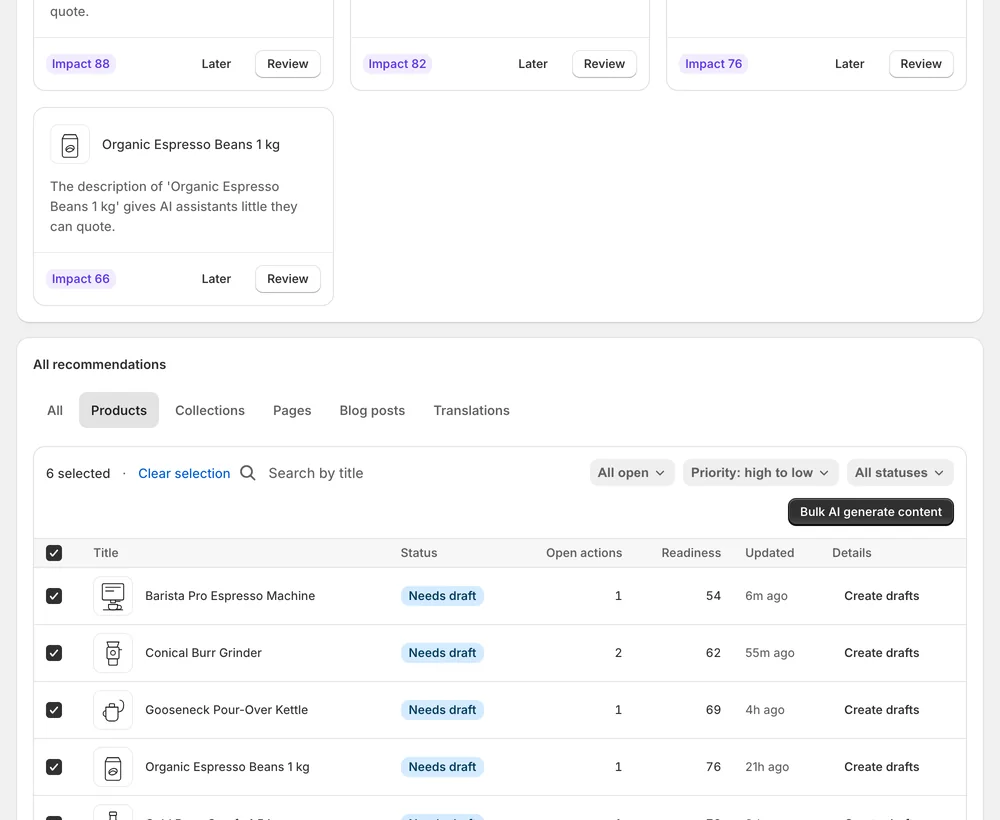
Bulk apply writes many approved drafts to Shopify in one run. You select rows in the All recommendations table, generate drafts with Bulk AI generate content, review them and press Apply changes. A confirmation dialog names how many changes across how many items go live. Nothing is written before you confirm.
Updated:
The problem
A spreadsheet import can overwrite hundreds of good descriptions in one click, with no before/after.
Reviewing and applying fixes product by product does not scale past a few dozen.
When a bulk run half fails, it is hard to tell which items changed.
How it works
In the All recommendations table, filter by type and Proposal state, select rows and press Bulk AI generate content.
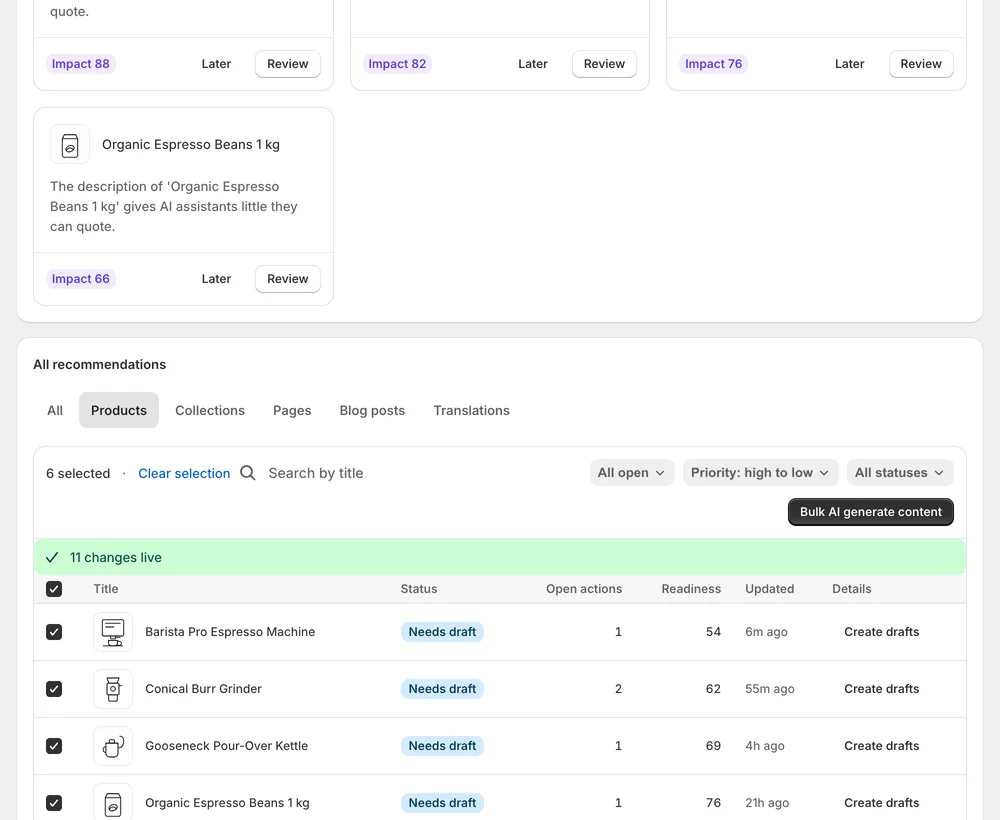
Press Apply changes. The confirmation names how many changes across how many items go live, then the job runs in the background.
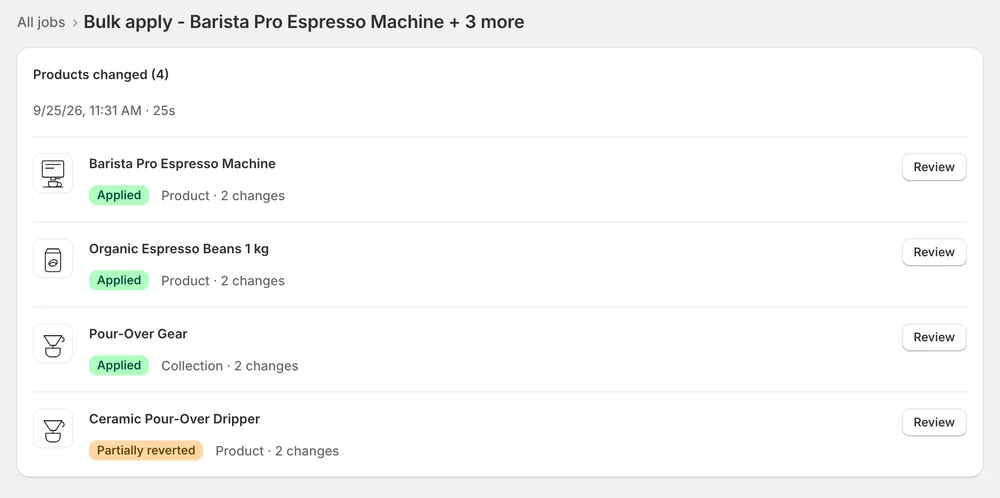
Open the job to see exactly which products changed. If some writes fail, the open list keeps the true status to re-apply.
In the app
The All recommendations table sits below Top recommendations on the Open tab. Tabs narrow it by object type, and on a type tab the Proposal state filter narrows to Needs generation, Ready to apply or Manual review. Select the rows you want and press Bulk AI generate content. The drafts are generated for the selected rows, and you can open any of them to edit or refine it.
Apply changes does not write immediately. A confirmation dialog first names how many changes across how many items go live. After you confirm, the job runs in the background and you can leave the page. A bulk apply takes a few seconds per item. Only the fields in the selected drafts are written, one field at a time.
Activity lists the run as a Bulk apply job with live progress and a status. Details shows the objects it touched, when it started and completed, its duration and the full error text if something failed. In Recommendations, each applied change is listed in History on its own, with its own Revert and a Live on store badge.
You stay in control
Plans
Included in every plan, with no separate quota.
Yes. Generated drafts wait in the table until you apply them. Open any of them with Details to read Before / after and the evidence, then use Edit or Refine with AI. The Proposal state filter shows which drafts are ready to apply.
Some writes did not land. Your open-actions list carries the true status. Reload the tab and re-apply what is still open. Changes are applied per field, so items that were written stay written. Persistent failures appear as failed jobs under Activity.
A few seconds per item. The job keeps running when you leave the page. You can follow it under Activity, where running jobs carry a live badge. If a job shows Stalled, give it time, because stalled jobs reconcile automatically.
No. You start every bulk apply. Automatic applying is a separate private beta in the Growth plan and is not enabled for every store. Ask support if you want it for yours. Until then you apply every change yourself.
Yes. Every change from a bulk run is listed in the History tab on its own and has its own Revert button. You can revert a single product and keep the rest. If a field was edited in Shopify afterwards, you are warned first.
Yes. Fields that no AI can invent, such as vendor, category or GTIN, need a manual edit in Shopify. The No AI fields badge marks those items. Recommendations about your theme, policy pages or schema are review-only: you make the change yourself and the next audit verifies it.
Install Sphen.ai, let it read your store, and decide exactly what goes live.