
What it does
Recommendations is where every proposed change waits for your decision. Sphen.ai shows the evidence, the current value and the drafted replacement side by side; nothing reaches your storefront until you press Apply. The page has two tabs: Open — the highest-impact picks as Top recommendations cards, with the full All recommendations approval table and its bulk actions directly below — and History for everything already applied.
Why it matters
Most catalog fixes are individually trivial and collectively decisive: a missing brand field, a description that never names the material, alt text nobody wrote. Working them one at a time in Shopify costs hours per hundred products. Here you review a batch, apply it, and get a revert button for anything you regret.
Setup
Open Recommendations. The Open tab starts with Top recommendations — your highest-impact fixes as cards, each with an impact score and a Review button.
Open a recommendation with Review — or Details on a table row — to see Before / after and the Evidence block (Current, Target, Signal). Press Edit to change the wording yourself, or Refine with AI with an instruction like “make it shorter”.
Press Apply to write it to Shopify, or Dismiss if it doesn't fit your brand. Editing or refining an already-approved change reopens it for re-approval.
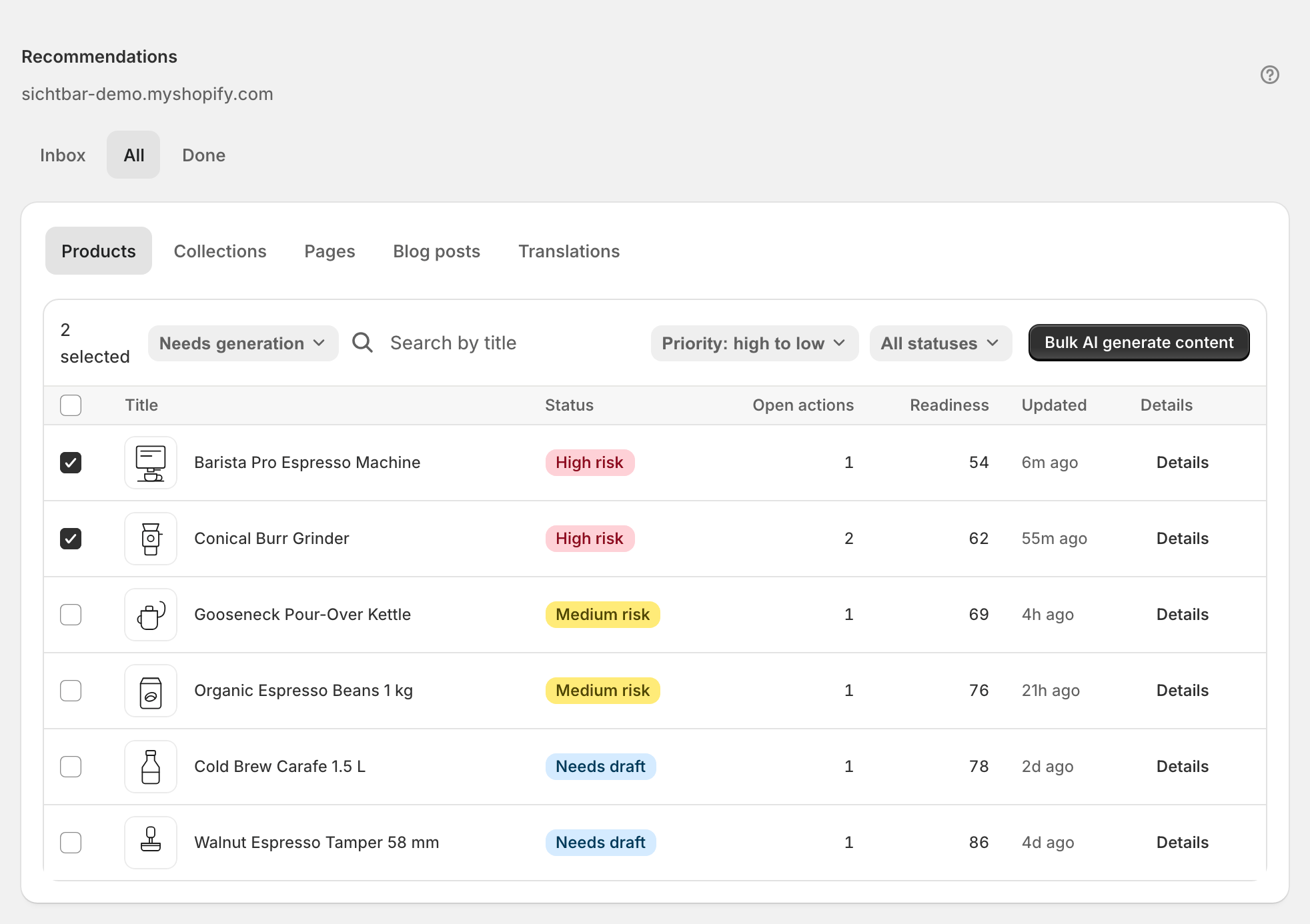
For volume, scroll down to the All recommendations table. Its tabs narrow by object type (All, Products, Collections, Pages, Blog posts, Translations); you can search by title and sort by priority. On a type tab, the Proposal state filter narrows to Needs generation, Ready to apply or Manual review — the All tab always shows every state.
Select rows and press Bulk AI generate content to draft, then Apply changes to write the approved drafts. A confirmation dialog names how many changes across how many items go live.
Check the History tab afterwards. Each applied change carries Revert and a Live on store badge verifying it against the real storefront value.
Reading the results
Statuses run in one direction: Draft → Ready for review → Approved → Applying → Applied → Measuring → Done, with Dismissed, Failed and Reverted as exits. Draft is what the Needs generation filter returns: an action that has no AI proposal yet. Measuring means the change is live and Sphen.ai is waiting for enough data to judge it — that window is normal and runs about two weeks.
On Overview, Measured impact resolves those measuring changes into Improved, Worsened, No measurable movement or Insufficient data. Expect a mix; the number that matters is improved minus worsened over a quarter.
Two badges deserve attention. No AI fields means every open action on that item is a field no AI can invent — vendor, category, GTIN, image alt — and needs a manual edit in Shopify. Differs on store means someone changed the field in Shopify after Sphen.ai applied it.
Troubleshooting
A recommendation says the proposal is unavailable.
Some fields can't be drafted from catalog data. Proposal pending means generation hasn't finished; a permanent “no value could be generated” means you update the field manually in Shopify. Product category is the common case — add a product type, or pick the category directly in Shopify.
Reverting warns that the store content changed.
Somebody edited that field in Shopify after Sphen.ai applied the change. Reverting would overwrite the newer edit. Check the current value in Shopify first, then choose Revert anyway or cancel.
Bulk apply reports a partial failure.
Some writes didn't land. Your open-actions list carries the true status — reload the tab and re-apply what is still open. Persistent failures appear as failed jobs under Activity; see Troubleshooting.
Frequently asked questions
Can I let Sphen.ai apply approved changes on its own?
Automatic applying is part of the Growth plan and offers two settings, Review every change and Apply approved changes automatically — but it is currently a private beta and not enabled for every store. Ask support if you want it switched on for yours. Until then you apply every change yourself. Once it is on, auto-applied changes are still fully revertable from Recommendations → History.
Why do some items say AI Trust actions are review-only?
Those recommendations concern your theme, policy pages, schema or app configuration — things Sphen.ai won't rewrite for you. Follow the guidance, make the change, and the next audit verifies the signal.
Where do translations get approved?
In the All recommendations table on Recommendations, under the Translations tab. See Translations.
Still stuck?
Support answers installation, catalog sync, audit, billing, privacy, and account questions for the SPHEN.AI Shopify app.