
Two clicks per change
You already decided a draft is right. Pressing Apply on it one by one adds nothing but time.
Autopilot & Activity · Automatic applying
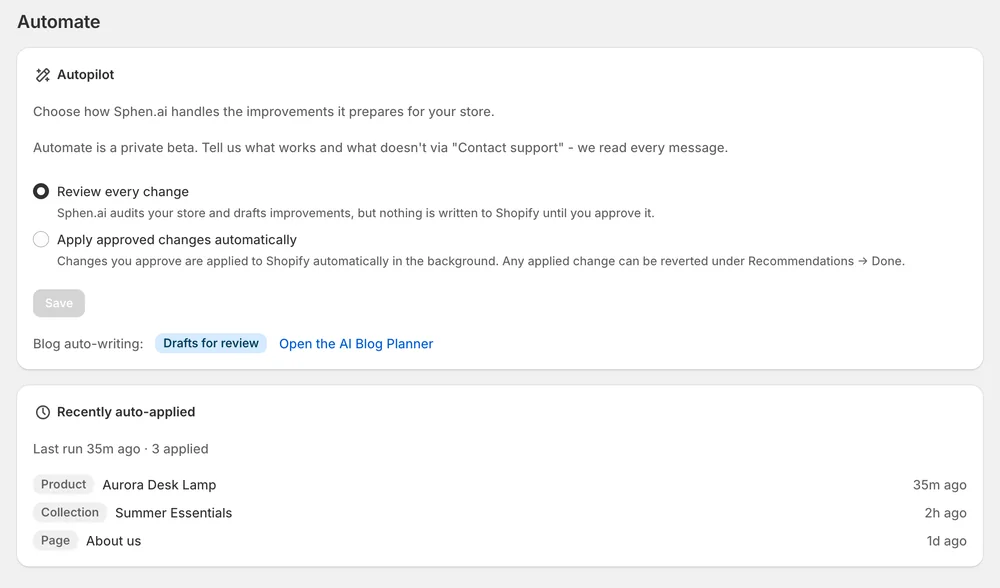
Choose Review every change or Apply approved changes automatically. In the second mode, what you approve goes live in the background — and stays revertible.
In short
Automatic applying writes the changes you have already approved to Shopify in the background, so you do not press Apply on each one. It never approves anything for you. It is a private beta on the Growth plan, enabled per store on request, and every auto-applied change can be reverted under Recommendations → History.
Updated:
The problem
You already decided a draft is right. Pressing Apply on it one by one adds nothing but time.
Approved fixes sit unapplied until someone finds an hour, and the store stays as it was.
Handing writes to a tool only works if you can still see and undo every one of them.
How it works
Under Automate, choose Review every change or Apply approved changes automatically. Blog auto-writing has its own switch on the AI Blog Planner.
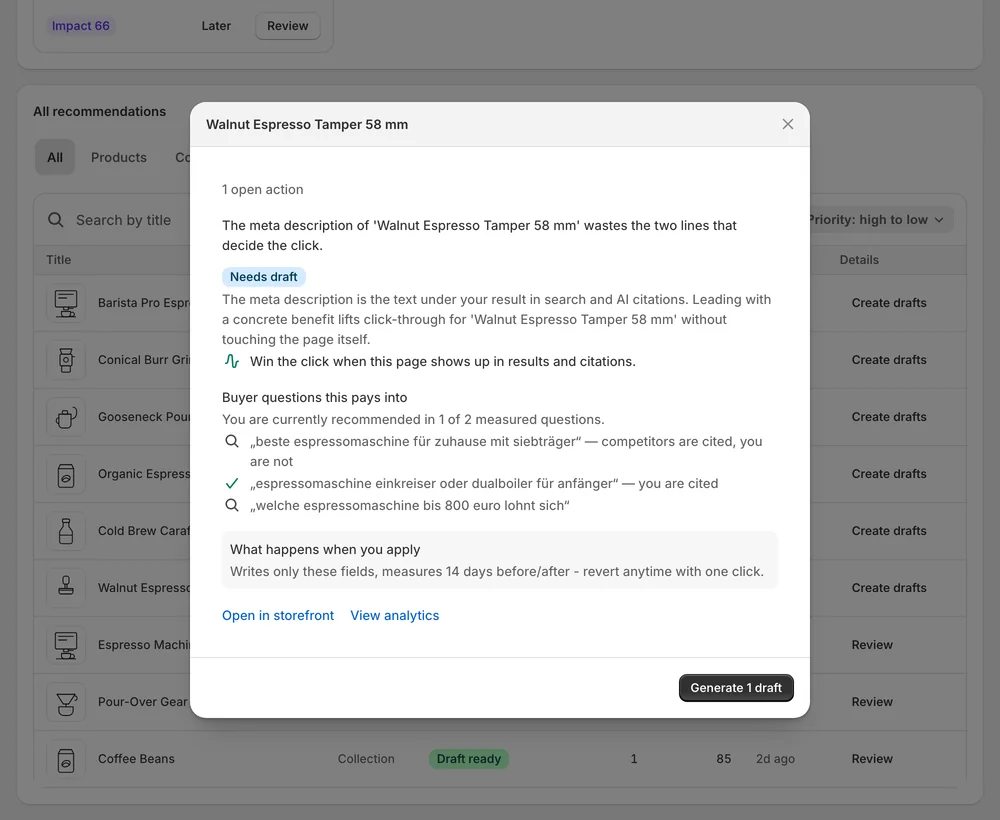
Drafts still wait for you. Each one shows the problem, the evidence and exactly which fields it will write.
Recently auto-applied lists what ran in the background. Every change lands in History with Revert.
In the app
Under Automate you choose between Review every change and Apply approved changes automatically. In the first mode nothing changes for you: you approve a draft and press Apply yourself. In the second mode, Sphen.ai takes over the apply step for drafts you approved. A note on the page tells you that the automatic mode is a private beta on the Growth plan and is switched on per store on request.
Every draft still opens with Before / after and the Evidence block with Current, Target and Signal. You can press Edit to change the wording, or Refine with AI with an instruction such as “make it shorter”. If you edit or refine a change you already approved, it reopens for re-approval. Dismiss removes a draft that does not fit your brand. Drafts you have not approved are never written.
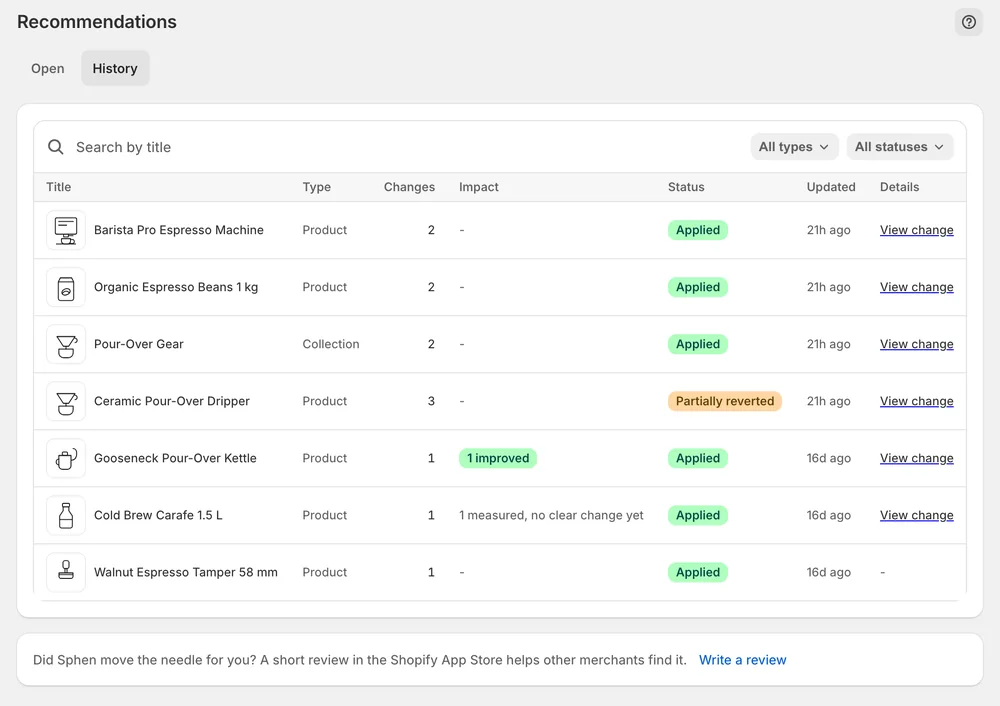
Recently auto-applied lists what ran in the background. Each change also lands under Recommendations → History with a Revert button and a Live on store badge that checks the value against your real storefront. If someone edited the field in Shopify after the change was applied, it is marked Differs on store, and reverting warns you before the newer edit is overwritten.
You stay in control
Plans
Included in every plan, with no separate quota.
Growth. Automatic applying is currently a private beta on that plan and is not enabled for every store. Ask support to switch it on for yours. Until it is enabled, you approve each draft and press Apply yourself, exactly as before.
No. Sphen.ai drafts, you approve. The automatic mode, a Growth-plan private beta, only takes over the apply step for changes you already approved. Drafts you have not approved are never written to your store, whichever mode you choose.
Yes. Open Recommendations → History and press Revert on the change. If the field was edited in Shopify since, you are warned before that newer edit is overwritten. Check the current value in Shopify first, then choose Revert anyway or cancel.
Your choice stays saved. Approved changes remain ready for manual applying until automation runs again. A message that background processing is paused is platform-wide, not specific to your store. Automatic applying itself remains a private beta on the Growth plan.
No. Automatic applying, a Growth-plan private beta, only covers recommendations you approved. Blog auto-writing has its own switch on the AI Blog Planner and creates drafts for your review. Articles are published without a review step only if you switch on Auto-publish yourself.
Fields that no AI can invent, such as vendor, category, GTIN or image alt, carry the No AI fields badge and need a manual edit in Shopify. Recommendations about your theme, policy pages, schema or app configuration are review-only. Sphen.ai does not rewrite those for you.
Install Sphen.ai, let it read your store, and decide exactly what goes live.