
Four formats
ChatGPT shopping, Google Merchant, AI crawlers and agents each read product data differently.
AI shopping · Product feeds
Sphen.ai serves your synced catalog as product feeds for OpenAI, Google Merchant, schema.org JSON-LD and llms-products.txt — with coverage shown for each.
In short
Sphen.ai serves your synced catalog as four product feeds: OpenAI / ChatGPT as JSON, Google Merchant as TSV, schema.org JSON-LD and llms-products.txt. You find them under Settings → AI readability, each with its coverage. Sphen.ai provides the feed. You decide where to connect it, for example as a product source in Google Merchant Center.
Updated:
The problem
ChatGPT shopping, Google Merchant, AI crawlers and agents each read product data differently.
A feed exported by hand is out of date the day a price or stock level changes.
Products that are missing from a feed simply do not exist for the assistant reading it.
How it works
Under Settings → AI readability, each feed shows its coverage: OpenAI / ChatGPT (JSON), Google Merchant (TSV), schema.org JSON-LD, and llms-products.txt grouped by product type.
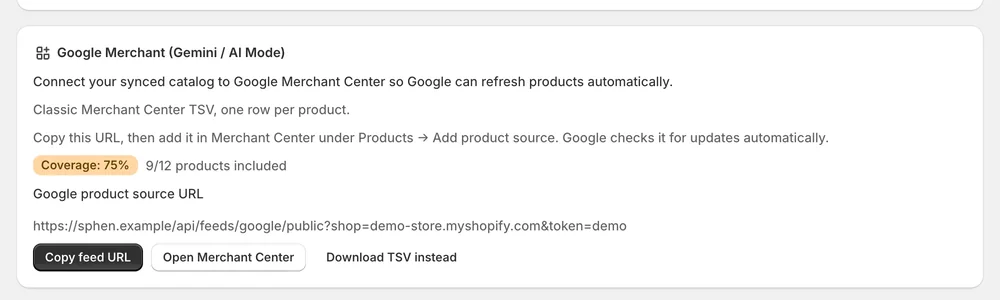
Copy the Google product source URL and add it in Merchant Center under Products → Add product source. Google checks it for updates automatically. Download is there too.
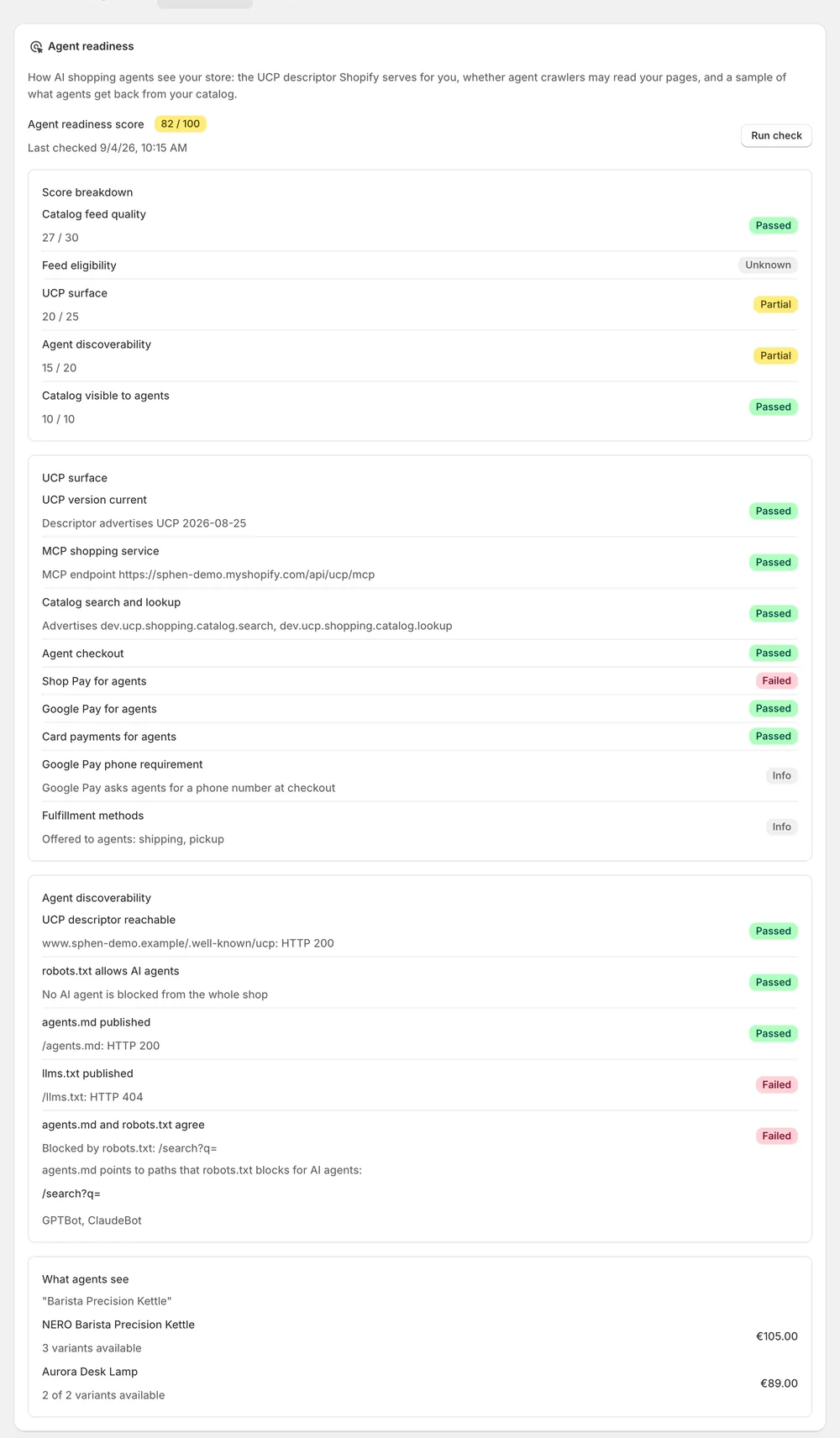
Products with weak feed data surface as recommendations such as Improve feed readiness, drafted and applied like any other fix.
In the app
Open Settings → AI readability. Each feed is listed with its coverage: OpenAI / ChatGPT as a JSON product feed, Google Merchant as a TSV with one row per product, schema.org JSON-LD, and llms-products.txt, grouped by product type. The feeds are built from your synced catalog. They show what is in Shopify and nothing invented, so gaps in a feed point to gaps in your product data.
For Google Merchant, the app shows a Google product source URL that you can copy. In Merchant Center, add it under Products → Add product source. Google then checks the URL for updates automatically. If you prefer a file, use Download to get the TSV. Sphen.ai does not connect the feed for you. You decide where your catalog data goes.
Products with weak feed data surface as recommendations, for example Improve feed readiness. You open them in Recommendations, see the current value next to the drafted one and decide with Apply or Dismiss. Fixes to the underlying product data always go through your approval. Nothing is written to your store until you apply it, and every applied change can be reverted under History.
You stay in control
Plans
Included in every plan, with no separate quota.
OpenAI / ChatGPT as a JSON product feed, Google Merchant as a TSV with one row per product, schema.org JSON-LD, and llms-products.txt. All four are listed under Settings → AI readability, and each one shows its coverage.
Copy the Google product source URL in Sphen.ai and add it in Merchant Center under Products → Add product source. Google checks the URL for updates automatically. You can also download the TSV if you want to work with a file instead.
An agent-readable digest of your catalog, grouped by product type. It gives AI agents a compact text version of what you sell. Like the other feeds, it is built from your synced catalog and listed under Settings → AI readability.
Feeds are built from your synced catalog, so they follow the product data Sphen.ai has synced from Shopify. For Google Merchant, Google checks the product source URL for updates automatically. You do not have to export a new file by hand.
No. Sphen.ai serves the feeds and you connect them. For Google Merchant you add the product source URL in Merchant Center yourself. This way you stay in control of where your catalog data is sent and which surfaces receive it.
Each feed under Settings → AI readability shows its coverage. Products with weak feed data also surface as recommendations such as Improve feed readiness. You review them in Recommendations and apply them like any other fix, with your approval for each change.
Install Sphen.ai, let it read your store, and decide exactly what goes live.