
Facts buried in HTML
Without structured data, Google and AI assistants have to read price, availability and brand out of your page layout.
AI shopping · Structured data
Sphen.ai emits Product, Organization, WebSite, BlogPosting and BreadcrumbList JSON-LD through Shopify theme app embeds — and flags duplicate schema before it causes errors.
In short
Sphen.ai outputs structured data through Shopify theme app embeds. Once you switch the embed on in the theme editor, your storefront emits Organization, WebSite, Product, BlogPosting and BreadcrumbList JSON-LD. No theme file is edited. Each schema type has its own switch, and switching the embed off removes the output immediately.
Updated:
The problem
Without structured data, Google and AI assistants have to read price, availability and brand out of your page layout.
Hand-written schema in theme files breaks on the next theme update and is easy to get wrong.
When your theme or another app already outputs schema, a second copy causes errors in Google Merchant Center.
How it works
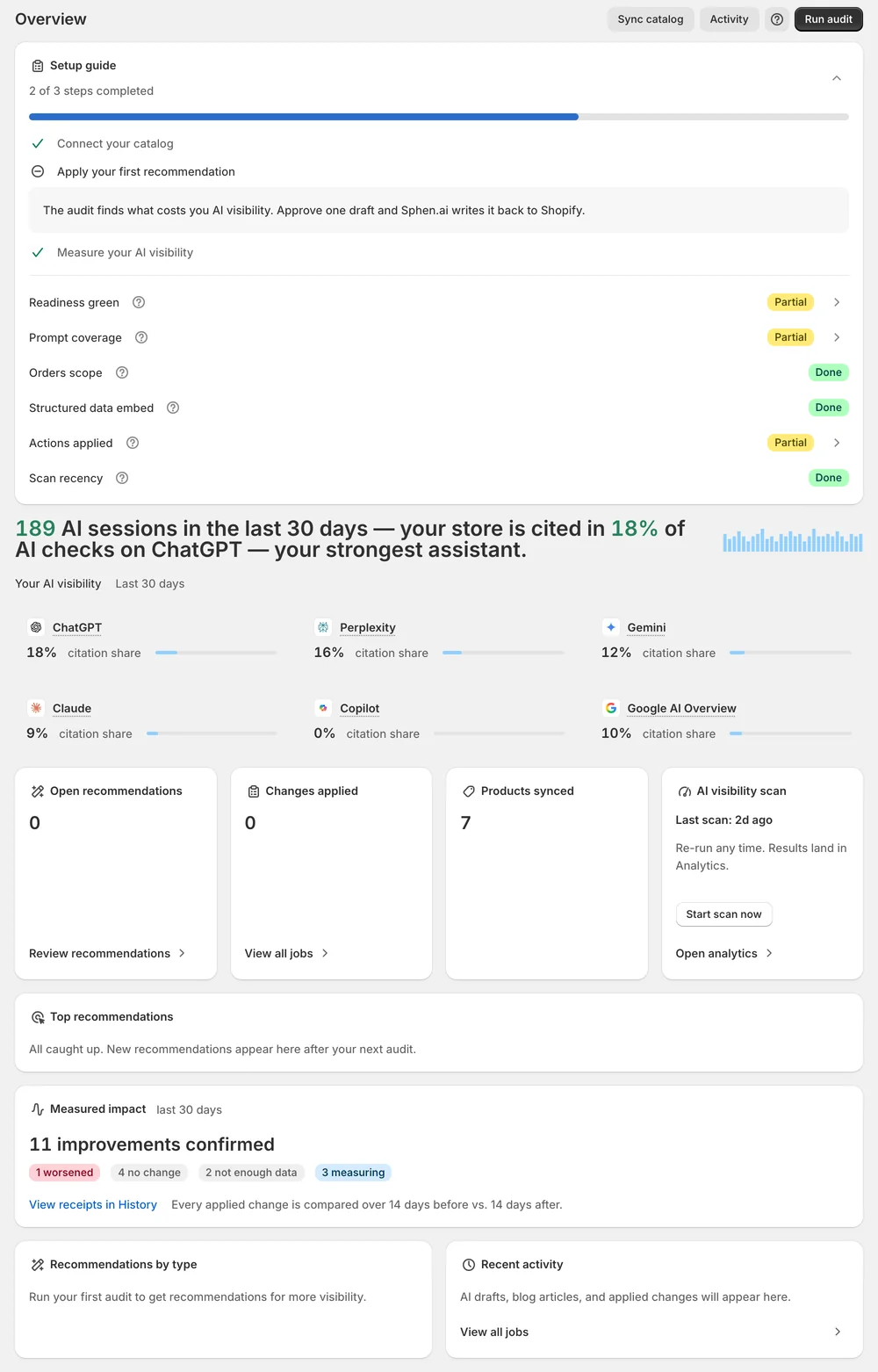
Overview shows Activate structured data in your theme. Open theme editor takes you straight to App embeds in Shopify.
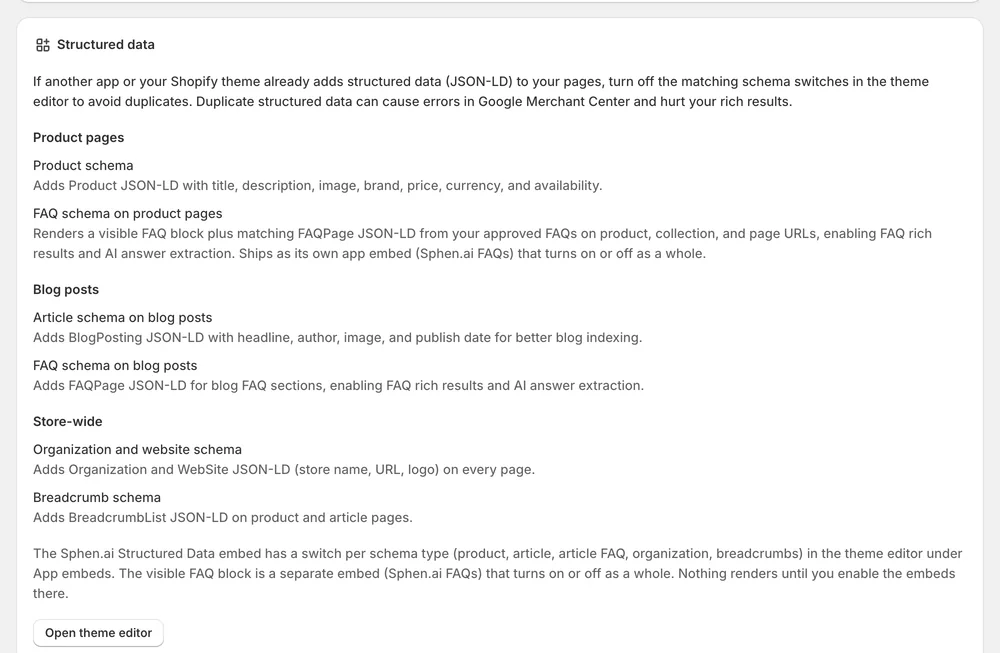
Turn on Sphen.ai Structured Data and pick the schema types: Organization & WebSite, Product, Article / BlogPosting, Breadcrumbs, FAQ schema. Connections & status then reads Active.
If another source already emits the same markup, Sphen.ai raises the recommendation Disable duplicate structured data. The next audit re-checks the structured-data gaps.
In the app
On Overview, the card Activate structured data in your theme has the button Open theme editor. In the Shopify theme editor, open App embeds in the left sidebar and switch on Sphen.ai Structured Data. Then save the theme. From Settings → Integrations the same action is called Activate in theme editor on the Connections & status card. Nothing renders before you do this.
Inside the embed, under Schema types, you enable the types you want: Organization & WebSite, Product, Article / BlogPosting, Breadcrumbs and FAQ schema. If your theme or another app already outputs one of these, leave that switch off. A separate embed, Sphen.ai FAQs, turns the visible FAQ block and its FAQPage data on or off as a whole. Switch it on if you publish FAQs.
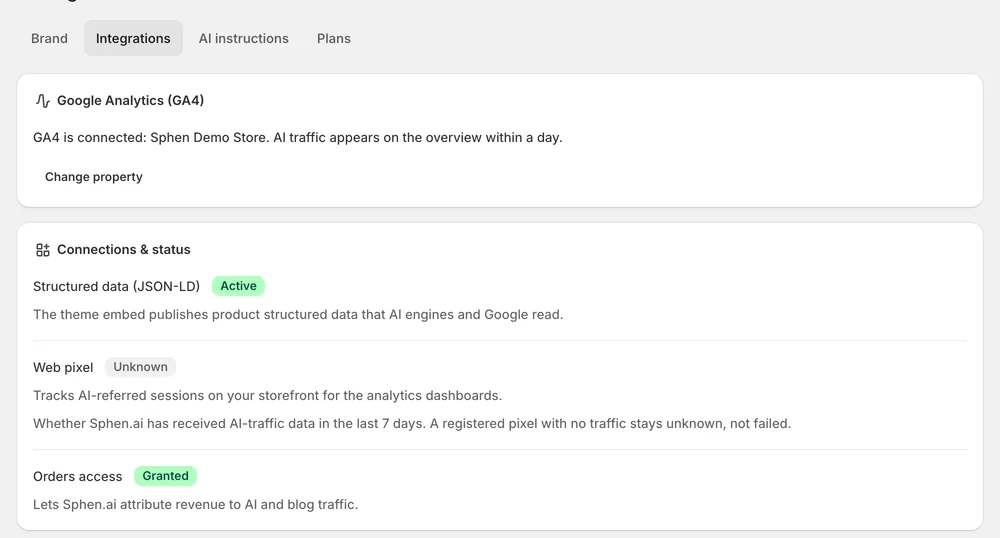
Back in Sphen.ai, open Settings → Integrations. On the Connections & status card, Structured data (JSON-LD) reads Active when the embed is on in your live theme. Not active means no JSON-LD is being emitted. Needs permissions means the app cannot read your theme. In that case, reopen it from Shopify admin. After the next audit, the structured-data actions leave your open list.
You stay in control
Plans
Included in every plan, with no separate quota.
Organization, WebSite, Product, BlogPosting and BreadcrumbList, plus an optional visible FAQ block with matching FAQPage data. You choose the types under Schema types inside the Sphen.ai Structured Data embed. The visible FAQ block has its own embed, Sphen.ai FAQs.
The embeds output JSON-LD script blocks and, if enabled, an FAQ block. There is no external script and no render-blocking resource. Theme app embeds are injected by Shopify at render time, so your theme code stays untouched.
Turn off the matching schema switch inside the Sphen.ai embed, or disable the other source. Duplicate JSON-LD causes errors in Google Merchant Center and does more damage than none. Sphen.ai also raises the recommendation Disable duplicate structured data for this case.
Yes. App embeds are per theme and apply to your live theme only. Activate them in the new theme after publishing it. The app flags this again as soon as it detects an inactive embed, and Connections & status reads Not active until then.
Check that you saved the theme and that you edited the published theme, not a draft. Then reload the Sphen.ai page. The status is read from your live theme, so an embed switched on in an unpublished theme does not count.
Removing the app removes the output. The embeds are injected by Shopify at render time and no theme file is edited, so your theme code stays as it was. Switching the embed off in the theme editor removes the output immediately as well.
Install Sphen.ai, let it read your store, and decide exactly what goes live.