
What it does
Sphen.ai mirrors your Shopify catalog, audits every product, collection and page for the signals search engines and AI assistants rely on, and drafts the missing content. Nothing is written to your store until you approve it. Setup is mostly automatic: the moment you install, Sphen.ai starts reading your catalog, writing the questions buyers ask AI, asking the AI engines about your store and auditing every product — you watch it happen and confirm one thing along the way.
Why it matters
An AI assistant can only recommend a product it can describe. Missing descriptions, empty alt text, absent brand or GTIN fields and unreadable structured data are the reasons a store gets skipped in an AI answer. Sphen.ai finds those gaps on its own; your job is only to review and approve the fixes.
Setup
Open Sphen.ai from the Apps section of your Shopify admin. The install and permission grant finish automatically the first time the app loads. If you see Reinstall required, reopen the app from Shopify admin so the missing permission can be granted.
You land on Get started, where Sphen.ai is already working. A live ticker narrates the pipeline: Reading your catalog → Understanding your brand → Writing the questions buyers ask AI → Asking ChatGPT & Co. about your store → Checking every product for AI-readiness. Large catalogs take a few minutes; you can leave and come back — nothing depends on the page staying open.
While it runs, check the Understanding your brand card. Sphen.ai pre-fills your business name, category, audience, markets and tone from your store — correct anything that is off (this profile steers how every draft is written) and press Confirm profile.
The question list below shows the buyer prompts Sphen.ai will measure your store against. Add the questions your buyers actually ask; your own questions can be removed anytime.
When the first results are in, the page reveals Your store, as AI sees it: your readiness score, how many products aren't AI-ready yet, and your top fixes. Press Review your first fixes to open them.
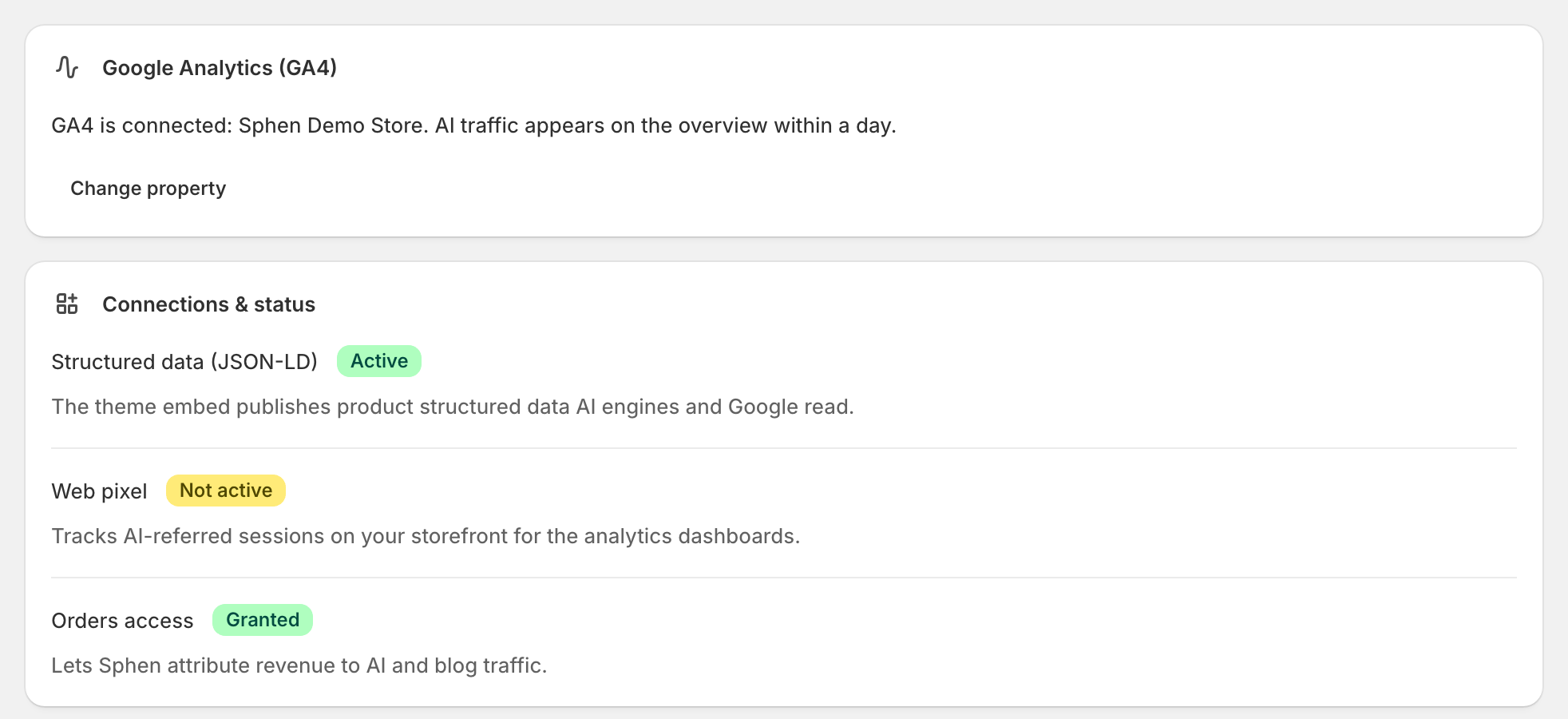
On Overview, the Setup guide carries what's left: apply your first recommendation and activate the theme app embed so your structured data is actually emitted — see Theme integration. The guide ticks itself off and disappears when you're done.
In Recommendations, apply one draft. That single applied change is the moment Sphen.ai has proven itself — and it starts the measurement window.
Reading the results
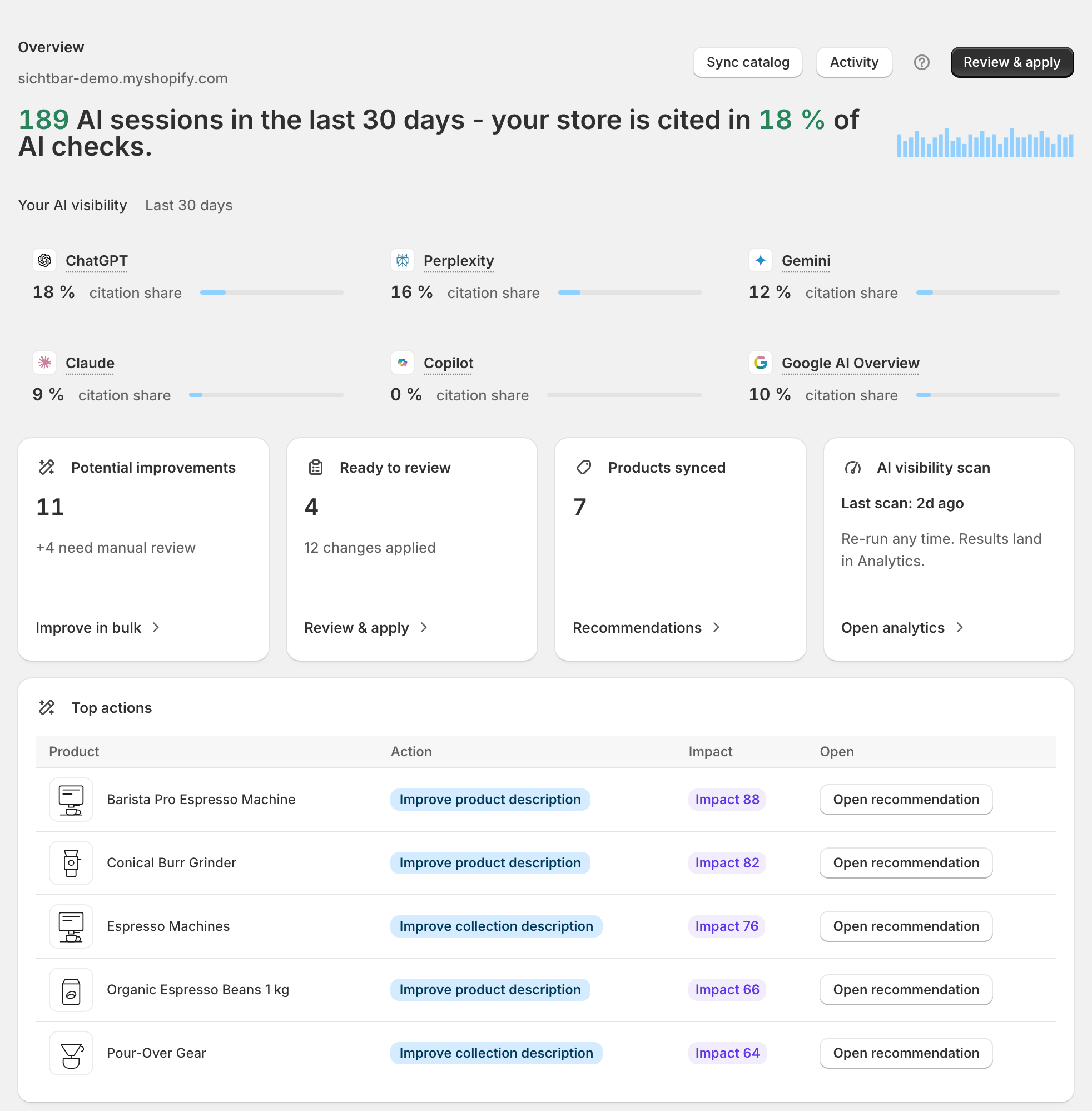
A finished setup looks like this on Overview: a hero sentence sums up your AI sessions over the last 30 days, your citation share and your strongest assistant, with a citation-share card for each engine underneath — ChatGPT, Perplexity, Gemini, Claude, Copilot and Google AI Overview. Below that, the cards Open recommendations, Changes applied and Products synced carry real numbers, the AI visibility scan card shows your last scan and offers Start scan now, and the Top recommendations table lists your highest-impact fixes with a Review button on each row. The collapsible Setup guide card stays only while steps remain, then disappears.
Open recommendations falling and Changes applied rising over the following weeks is the signal you want. Once your first applied change has been measured, a Measured impact card joins the page and counts your confirmed improvements from a before/after comparison per change. The visibility numbers in the hero come from your AI visibility scans — see AI visibility.
Troubleshooting
The ticker shows that the catalog sync hit a problem.
Press Retry right on the failed row. If the Setup guide on Overview marks a step as blocked instead, that almost always means a missing Shopify permission or an inactive theme app embed — reopen Sphen.ai from your Shopify admin to re-grant permissions, and check Theme integration for the embed.
The catalog sync is still running after several minutes.
Large catalogs take a while, and everything continues in the background — you can leave the page; your progress, profile and questions are saved. Persistent failures show up as failed jobs under Activity; see Troubleshooting.
I skipped the setup. Can I get it back?
Yes. The Setup guide on Overview keeps a Guided setup link while your first-run isn't finished. Nothing you entered is lost, on any device.
Frequently asked questions
Does Sphen.ai change my store without asking?
No. Every change is drafted, shown with a before/after diff and applied only when you press Apply. Automatic applying is part of the Growth plan, but it is currently a private beta that is not enabled for every store — ask support if you want it. Until then you apply every change yourself.
How long until I see results?
Your first audit results and fixes appear during setup, usually within minutes. Catalog fixes are live on your storefront within seconds of applying. AI visibility moves on a slower clock — plan for a few weeks and several scans before the trend is readable.
Can I undo an applied change?
Yes. Open Recommendations → History and use Revert on the change. If the field was edited in Shopify after Sphen.ai applied it, you get a warning before the newer edit is overwritten.
Still stuck?
Support answers installation, catalog sync, audit, billing, privacy, and account questions for the SPHEN.AI Shopify app.